
Changelog

Follow new updates and improvements to Building Swell.

Week of October 5, 2026
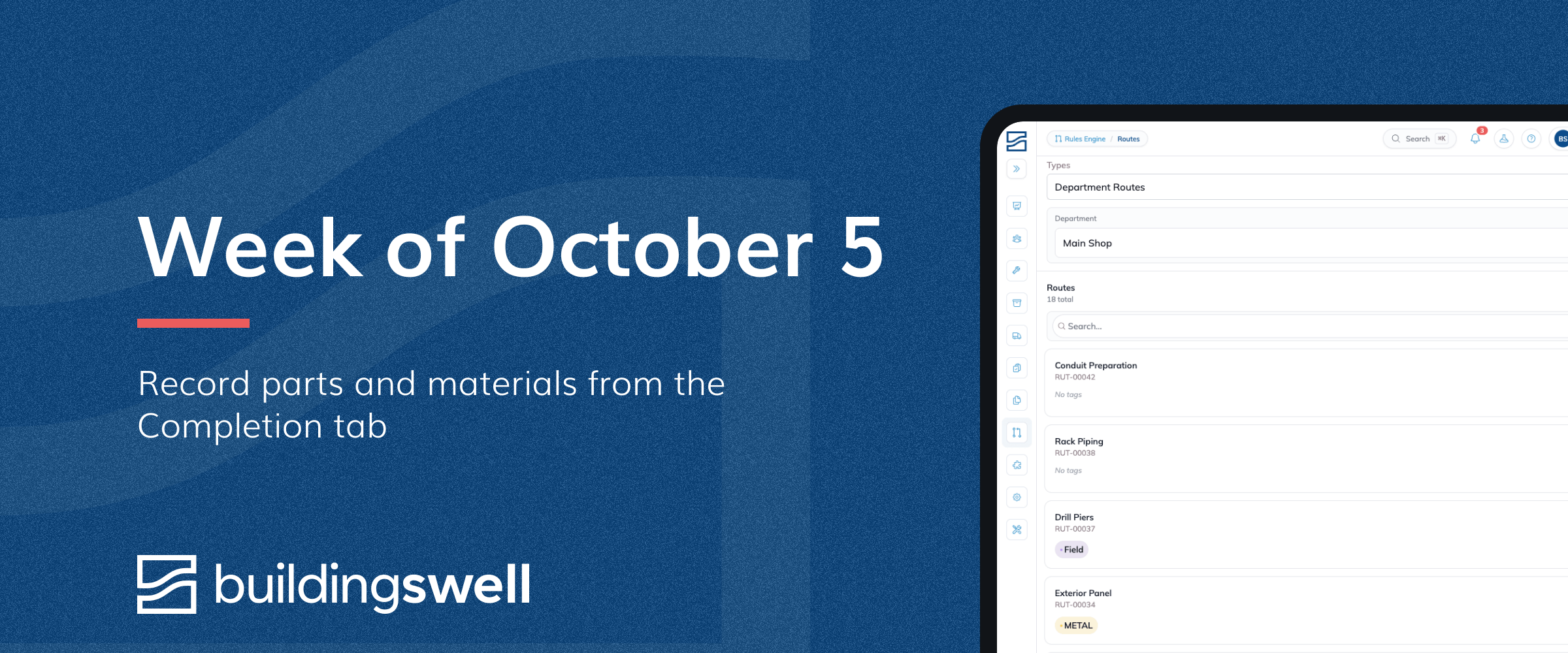
Most of this week is about recording work right where it happens. Each stage on an order's Completion tab now lists the parts made and the materials used, so a crew can count 25 of 100 panels as they go from a phone or tablet. Step progress follows the count, and the stage completes when every part is made.

Planning's Calendar view picked up the same three-dot menu as the table, so you can put a delivery phase on a delivery without going back to the Gantt to find its row.

Dashboards have a new Metric Rows widget for scorecards: one block per department, team or shop, with a few numbers side by side and how each one moved. It reads from across the room and comes through in scheduled reports.

One smaller fix for phones: the AI assistant fits the screen better on mobile.

Record parts and materials from the Completion tab

New · Orders · Build

Each stage on the Completion tab now has a Parts & materials list. It shows the parts made and the materials used on that stage and its steps, with how many are recorded out of the plan. Use − and + or type a number to record progress as you go, for example 25 of 100 panels made. The list is on the order's Completion tab and in the Update Progress drawer on Build, and it's sized for phones and tablets.

Recording parts made also moves step progress to match, up or down. Parts made at the stage move every step; parts made at a step move only that step. Making more never pulls back a step that's already further along, and when all of a stage's parts are made the stage completes. If a step no longer matches the parts made, for example after its slider was moved, the list says so and Sync progress brings it back in line. Update all records everything still planned and completes the stage.

Changing a component's route no longer leaves its parts and materials on retired steps. Anything not yet used moves to the new step with the same name.

Add work to a delivery from the Planning calendar

Improved · Planning · Delivery

Items on the Calendar view in Planning now have the same three-dot menu as their row in the table. You can put a delivery phase on a delivery from the calendar, without switching back to the Gantt to find its row.

Hover an item and the menu appears right after its name. On a phone or tablet it's always shown. It offers everything the row menu does, including Add to delivery, Edit, Update progress, Put on hold and Move, and it works on the items in a day's list of extra items too.

Steps don't have a menu, the same as in the table.

Show a few KPIs for every team side by side

New · Insights

Dashboards have a new Metric Rows widget. It gives each row of your data its own block: the name across the top with a short note and a Red or Green status, then a handful of numbers side by side. Use it for a scorecard with one block per department, team or shop, where a table is too dense to read on a screen across the room.

Each number can show how it moved: "▲ 11.6 pts from 6.3%", green when that's good and red when it isn't. When there's nothing to compare, the block says why, so a blank never looks like a mistake. Put two blocks side by side to fit more on a screen. On a phone they stack.

The blocks come through in scheduled reports and exports as a table, with the same green and red, and they work on shared dashboard links.

Close the assistant and switch conversations on a phone

Maintenance · AI · Mobile

On a phone, the bar across the top of the assistant now sits below the status bar, so closing it, switching conversations and auto-approve are all within reach. The conversation list opens the same way.

Before, that bar rendered behind the clock and signal icons at the top of the screen.

Add an order's parts in one go and spread them across stages

New · Orders

Add lines on the Materials & production tab of an order or a route now opens a table instead of a drawer. Add as many lines as you need, each with one part or material, whether it's made, processed or used, the quantity and the stage, then save them all at once. Type a SKU that doesn't exist yet and it's created when you save.

Each line only offers what its item can do: a material is used, a purchased part is used or processed, and a part you make can be made, processed or used. Pick an item and the line switches to a flow it allows.

The stage list shows each component's stages under the component's name, and you can search it by component or stage. On a component's page it lists only that component's stages, plus Order level if a line needs to go back to the order. New lines start at the component's first stage.

After an import, select the lines still at the order level and choose Assign stages. For parts, pick where they're Made at and Used at; they're processed at every stage in between, with the same quantity at each. For materials, pick where they're Used at.

Order imports also take a Flow column (Made, Processed or Used), so a sheet can bring in made and processed parts as well as materials. Leave it blank for materials.

Fixed: completing a stage on an order of more than one unit now records every part planned at that stage. Before, a part that came from the route was recorded for one unit only, so a later stage that used the parts could take more than had been made.

Record what you made and used when you complete work

Maintenance · Orders

Completing a stage now records the parts and materials it still owes, as planned. The confirm lists them; choose Edit amounts to open the stage's parts list and change them first. Completing a component or a phase records everything still owed in the stages and steps inside it, and its confirm says how many. Materials you already recorded aren't recorded again, closed stages are skipped, and an amount you changed by hand stays as you left it.

Checking off a step records what that step still owes. Sending units ahead, or adding completed units on a step, records their share of the plan. Each shows a message with Change, which opens the parts list so you can fix the amounts. When finishing a step or stage also finishes its stage or the whole order, the rest of that stage or order is recorded too, and the confirm lists it. Finishing the order records its own materials, the ones not placed at a stage. A stage that finishes because all its parts were entered in the parts list records the same way.

Completing also records the stage's processed parts as planned. A processed count you already entered stays as you left it.

A material swapped for another is no longer recorded where it was planned. Its substitute is recorded instead.

The "Material usage not recorded" label on a stage or step now opens its parts list. The separate materials drawer is gone.

The Completion tab lists the order's own parts and materials, the ones not placed at a stage, at the top. Parts processed at a stage now count toward its progress, the same as parts made there. Rows in the parts list are taller and easier to tap.

A material that has never been received asks where it was drawn from instead of failing with an error. The choice only applies to that draw and doesn't change the material's settings. Stock at that location shows as negative until the material is received.

Parts you make now go into stock at the stage's location: where its work is recorded, or where it is planned if work hasn't been recorded anywhere yet. Parts made on a step land at its stage's location. A part set up to always land in one place, such as a specific rack, still goes there. When a later stage of the same order uses those parts, it takes them from where they were made.

On the Materials & Production tab, Mark consumed and Mark produced are now Record used and Record made.

A production dashboard that answers one question per tab

New · Insights

Your production dashboard is down to four tabs, and each answers one question. Completions is what you built and how long it took. Stalled Orders is what's been open too long. Hours is where the time went. Plan vs Actual is whether finished work is keeping pace with the plan and the hours. Nothing appears on two tabs any more, and the Trends tab is gone, with its charts moved to the tab they belong on.

Every tab now has Phase, Stage and Tags filters under the dates. Tags follow the work down: tag a release and every order under it counts, tag one order and only that order does. That makes a tag the way to tell kinds of order apart inside one project, say "Large Skid" or "Rack". Until you've set up phases or tags, the filters say No phases yet and No tags yet.

Completions leads with the Completions table, by project, release and order, with a Qty and a Duration for each order: the calendar days from the first time anyone clocked in on it or recorded progress, to the day it was done. Under it, Orders Completed per Week with a 3-week average line, and Duration per Order, one point per order with the running average.

Stalled Orders counts stages open past a number of days you choose, seven to start, on the same clock as Duration. Stalled Stages per Week shows whether that number is rising or falling, built from your history, so it has weeks to show from the start. Click a card to open the orders behind it.

Hours moves Production Rate per Week, Hours by Phase and Hours per Order to the top. Hours per Order counts every hour booked on each order finished in your dates, including hours from before them. New charts show Utilization by Project and Headcount by Skill. Click any card to open a page with the detail behind it. Exporting a chart to Excel now gives you the names you see on screen, with no internal IDs.

Plan vs Actual is one table: Planned, Earned, Spent, Earn − Plan, Earn − Spent, % Earned and % Earn − Spent, with a Total row. Group it by project, phase, stage or order, and open a project down to each order. Earn − Plan above zero means ahead of schedule; Earn − Spent above zero means the work finished was worth more than the hours it took. Charts below compare Earned with Spent and with Planned, by project and by week.

Put items that aren't in your inventory on an inbound delivery

Improved · Delivery

An inbound delivery can now carry things that aren't in your catalog, like a shop vac, a rental or a box of paperwork. Type it in the search when you add a line and pick Add as an item. It goes on the delivery with a quantity, counted in Each unless you pick another unit, and you confirm it when the truck arrives, the same as the materials.

These items never go into stock, so receiving doesn't ask where they landed. They show Not in inventory next to them. Until now the only way to put one on a delivery was to create a material for it in your catalog.

Days off reach QuickBase as absences

Maintenance · Integrations · Timesheets

When somebody is down in Out of Office for a whole day of vacation, sickness or another reason and doesn't clock in, that day now goes to QuickBase as an absence at their scheduled hours, the same as any other scheduled day they missed.

A whole day off for school still goes as school, at the scheduled hours. A day the department was closed for a holiday still sends nothing.

Read this online

Week of September 28, 2026

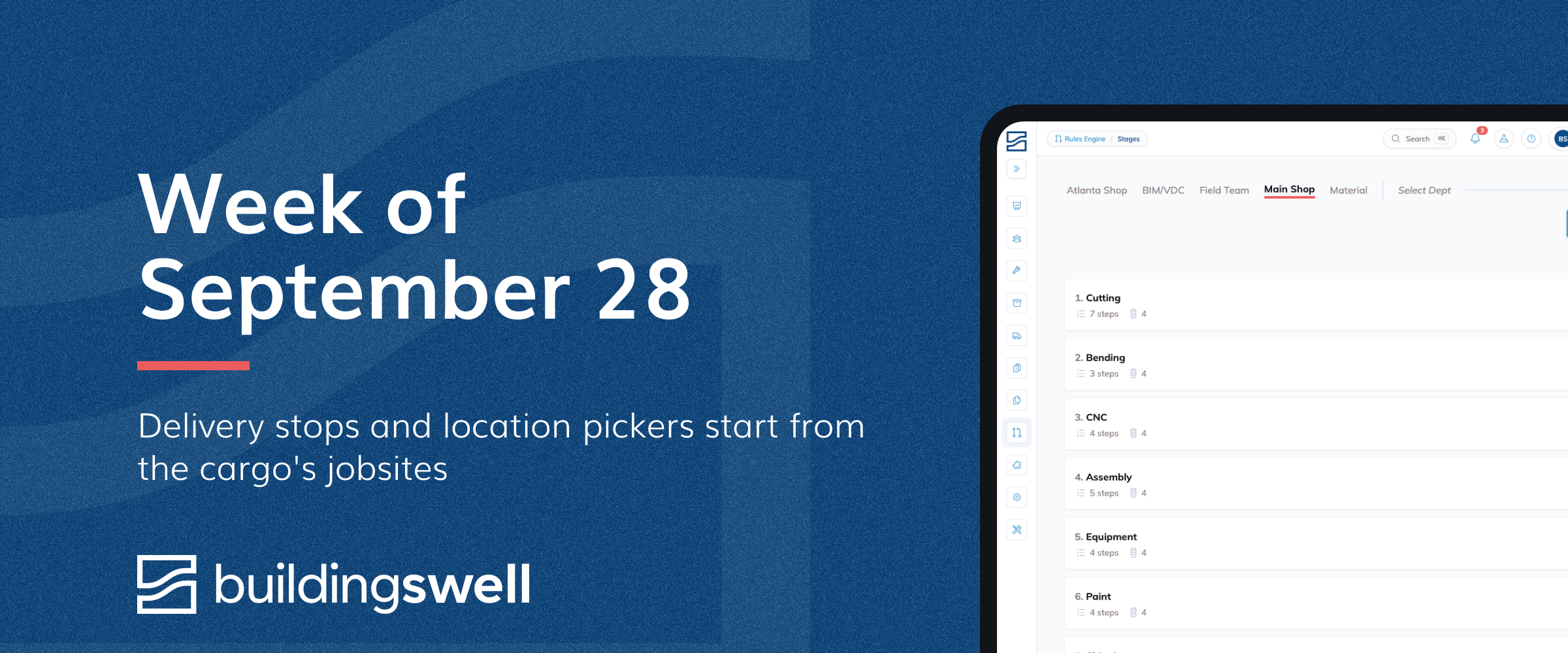
Most of this week is about getting a delivery where it's going. Location pickers on a delivery now start from the projects on the cargo, each project's jobsite and the spots inside it first, and a delivery carrying cargo for several projects can set up an unload stop for each one in a click. New projects also start with your company's standard locations, such as Main Gate or Laydown Yard, set once under Company settings, Deliveries.

The Plan vs Actual tab on production dashboards follows the dates you pick. Choose Last Week and the cards, the charts and the This Period table cover that week, and a new Finished vs Spent card puts the share of the budget finished beside the share spent. Trends follows the project you pick in the same way.

Work that is waiting on earlier work shows Waiting, and only work that is ready to start shows To Do, so filtering for To Do shows what your crew can pick up now. A connected Smartsheet sheet can carry the same Waiting word on its rows.

The Nested search on Planning finds an order by any phase or component in it, and AI Chat pauses a long question with a Continue button instead of giving up on it. Checks on a form's choice questions read as the condition they fire on. The rest of the week is smaller fixes: typing 1230 in Timesheets gives 12:30 PM, a pick list can be renamed, completing a stage only asks about materials still to record, and archived stages stay out of stage filters.

Delivery stops and location pickers start from the cargo's jobsites

Improved · Delivery

Location pickers on a delivery now start from where the cargo is going and where it leaves from. In the To field and on unload stops, the locations of the projects on the cargo sit at the top, under On this delivery, each project's jobsite and the spots inside it first. In the From field and on load stops, your department locations come first, led by the department that built the cargo. Everything else is still in the list below a divider, and search still finds any location in your organization.

When a delivery carries cargo for more than one project, the Itinerary tab offers Set up a stop for each project. One click adds an unload stop at each project's jobsite (filling the empty unload stop first) and sends each project's cargo to its own stop. If cargo is added later, or ends up at another project's stop, the same place offers to move it. Add stop also starts at the next project that doesn't have a stop yet.

Project locations now show their project wherever a delivery names a place, such as Jobsite (Main Street Clinic), so two jobsites on one trip read apart.

New projects come with your standard locations

New · Delivery · Settings

Set your company's usual project locations once, such as Main Gate, Laydown Yard, or Electrical Room, under Company settings > Deliveries > Standard project locations. Every project created after that gets them under its Jobsite, ready to pick as a delivery stop. Existing projects stay as they are.

The standard locations use the Jobsite's address, so filling in the Jobsite once covers all of them. Add, rename, or archive any of them per project from the project's Locations tab.

You can also pin a location to an exact spot. The new project form and the location form now take a latitude and longitude, and pasting a pair copied from a map fills in both.

Plan vs Actual and Trends follow the dates and project you pick

Improved · Insights

The Plan vs Actual tab on your production dashboard now shows how the dates you picked went. Choose Last Week and the cards, the charts and the This Period table cover that week: the hours the schedule called for, the hours booked, and the work finished. This applies to production dashboards set up with the revised Plan vs Actual tab.

A new Finished vs Spent card puts those side by side: the share of the budget finished in those dates against the share spent. Green means the work finished was worth more than the hours it took. Every card opens a project-by-project breakdown for the same dates, and clicking a project or a bar opens a page that follows the dates too.

Two tables sit one above the other. Plan vs Actual: This Period covers the selected dates, and Plan vs Actual: All Time covers the whole job. They share the same columns in the same order, so a stage reads straight across from one to the other: % complete, % spent, variance, hours scheduled or budgeted, spent, remaining and earned. Every row opens down to the order, and Group by on the table switches between stage then order and order then stage. Charts that still cover the whole job say All time under their title.

A single step estimated at more than 1,000 hours is left out of planned, earned and budget, and the Planned Hours card shows how many were left out, so one mistyped estimate can't swing the page.

On the Trends tab, choosing a project now shows that project's finished orders, the hours on each and the running average, and the figures above the chart follow the same project. Trends also counts each order at the level the work was done: where an order is split into sub-orders, each sub-order is its own point on the chart, and where it isn't, the order is. An order with some work of its own and some in sub-orders shows both, each with its own hours.

Work waiting on earlier work shows Waiting

Maintenance · Orders · Planning · Integrations

A phase, stage or step shows Waiting until the work before it is done, however it got its place in the order: added later, linked to the work before it, or moved in the list. Only work that is ready to start shows To Do, so filtering for To Do shows what your crew can pick up now.

Completing the last stage of a phase makes the phase after it To Do straight away, the same as completing the phase itself. Work you put on hold stays on hold when other work in its order is added, linked or reordered.

Phases that come in from a connected Smartsheet sheet follow the order in its Successor column the same way. Orders whose work was linked before this change are corrected on request.

Your sheet shows which work is waiting

New · Integrations

Rows that are waiting on earlier work in BuildingSwell now get your Waiting word on the sheet, and switch to your To Do word once that work is done. Map a word to the new Waiting outcome in the connection's status mapping to turn it on. The word also has to be an option in your sheet's Status column, and the status mapping has to send changes to the sheet: Push, or one of the Two-way options.

A Waiting typed on the sheet means nothing has started on that row, the same as To Do. Whether it waits or is ready to start comes from the order of the work, so a row with nothing unfinished before it shows To Do. Without a Waiting word in the mapping, waiting rows keep getting your To Do word, as before.

Find an order in Planning by any phase or component in it

New · Planning

In the Nested view on Planning, the search box now finds an order by the name or ID of any phase or component in it, including one nested inside another. Type a phase or a component and the order that holds it comes back, the same way it already comes back for its own name, number, project or route.

The order shows and expands as it always has, with everything in it. A phase name that most orders share, like Design, brings back every order that has it.

Stage names are not part of this search. Rename or move a phase or component and the search follows it to its new name and order; archive it and it no longer finds the order.

AI Chat pauses long questions instead of giving up

Improved · AI

Some questions need many lookups, such as comparing every phase across several routes and the people assigned to each. When AI Chat reaches its working limit on a question like that, it no longer fails with a request to try a narrower question. It stops, writes a short note of what it found so far and what it has not checked yet, and shows a Continue button that picks the work up from that note.

Questions like that also finish sooner. Route reads now name the people assigned to each stage, AI Chat runs several lookups at once, and a follow-up question remembers what the previous answer looked up.

When a lookup fails, the chat now shows the error's own message instead of technical details.

Form checks read as the condition they fire on

Maintenance · Forms

A check on a choice question now means what it looks like it means. Is on Test 1 fires when the inspector picks Test 1. Is not on Test 1 fires when they pick anything else.

Each check also says in one line when it fires. Set Is on Test 1 with Then: Warn and record, and the check reads Warns when the answer is "Test 1". You can tell what an inspector will see without filling the form in to find out.

This is what lets two checks on one question work together. Is Test 1, warn alongside Is Test 2, block now does exactly that: a warning on one answer, a block on the other. A pair like that used to fire one of the two whichever option was picked.

Checks you built earlier behave exactly as they always have. Where one reads differently now, it is describing the same behaviour in the new wording: a check that used to say the answer had to be Test 1 now says it fires on every answer that is not Test 1, which is what it was already doing.

A question nobody could answer will not go live. If the checks on a question leave no answer that gets past them, sending the form live is refused and the question is named, so you can fix it while the form is still a draft. Both of the checks above set to Block finishing would do it: pick Test 1 and one blocks, pick Test 2 and the other does. So would a minimum above a maximum on a number question, or two different values a text answer would have to match at once.

Whether the question is required makes no difference. Leaving a question blank is not an answer to it, so a question with every option blocked is refused either way.

Warnings never count against this. A question answered with a dozen warnings on record is a question that was answered, and checks that overlap or disagree are yours to write.

A signature question no longer asks for the same thing twice. Marking it required already means it has to be signed, so the separate Must be signed check is gone from the builder. A template that already has one keeps working.

You can see a form's checks after it goes live. Opening a question on a live form used to show a blank copy of what the inspector sees, which said nothing about how the question was set up, and a live version cannot be edited, so there was nowhere else to look. It now shows the question read-only, checks included. Preview still shows the inspector's view.

On a question with more than one answer box, each check now sits under the box it applies to rather than in one list under the whole question, so you can see which box a warning is about. And when a question like that is required, every box says so, because all of them have to be filled. That used to surface only when you tried to finish the form.

Completing a stage only asks about materials still to record

Maintenance · Orders

When you complete a stage, the app asks you to record materials only for the steps that still have some left, and fills in what remains rather than the full plan. Steps you already recorded are skipped. Before, those steps were offered their full planned amount again.

When the same part is listed more than once on a step, for example once per sub order, completing the step offers one total for that part, and Mark consumed on the Materials tab records exactly what is left across its lines.

Typing 1230 in Timesheets gives 12:30 PM

Maintenance · Timesheets

Typing a 24-hour time into Start time or End time in Timesheets now reads 1200 to 1259 as the afternoon, so 1230 becomes 12:30 PM. 0000 to 0059 is still just after midnight, and adding am or pm to what you type always decides it.

Shift and break times read what you type the same way.

Rename a pick list from its page

Maintenance · Orders

You can now rename a pick list after you create it. Open the list, click its name at the top of the left panel, type the new name and press Enter. Press Escape to leave the name as it was.

Archived stages stay out of stage filters

Maintenance · Planning · Build · Forms

When you filter by stage in Planning, Build or Forms, the list offers only the stages you still use. Stages you've archived no longer appear there.

Restore a stage from Settings > Archived and it's back in those lists.


Read this online

Week of August 31, 2026

Four additions landed on the same Tuesday, and two of them are about reading an answer off the screen instead of asking somebody for it.

Orders have a History tab: every change to the order, newest first, with the person who made it and the time they made it, and the edits that followed from one change sitting underneath it. Group Planning by project and each project row now carries its own progress, hours logged against hours planned, and how far ahead or behind the schedule it is running, counting every order under the project rather than only the ones your filters left on screen.

The other two reach outside the app. An organisation that runs its own identity provider can point Building Swell at it under Settings, Single Sign-On, test the configuration before turning it on, and turn it back off again. Everyone else signs in the same way as before, with their email filled in already. And a drawing, markup or delivery ticket attached to a Smartsheet row now lands on the matching order, while a file added in Building Swell goes out to that row.

The rest of the week is repair work on Settings and the integrations: a user import that updates every name in the file, a weekday you can clear from a repeating schedule change, a second Smartsheet connection under the same login, and archived orders that no longer hold up a sync. You can also archive a form template you have stopped using.

See who changed an order and when

New · Orders · Build

Orders now have a History tab: every change to that order in one list, newest first, with the person who made it and the time they made it. Status moves, ship dates, people added and taken off, comments, documents, work sessions and form entries all land there.

It opens on everything under the record you are on, so an order shows what happened on its phases and components too. This record narrows it to that one row, and a stage starts there already, because a stage's activity is its own. The chips above the list keep one kind of change and drop the rest, for when you are chasing a date or a person rather than reading everything.

Where one edit set off others, the entry says which edit did it. Move a ship date and the dates that moved with it sit underneath it, rather than arriving as separate lines of their own. When the system makes a change off the back of somebody's edit, the entry still names that person.

Nothing in the tab can be edited. Reading it takes the new History permission, which offers Read and nothing else, and the tab is arriving one organisation at a time rather than all at once. Separately, the Quality Control tab is now called Forms wherever it appears, which is what history calls those entries too.

See where a project stands without opening its orders

New · Planning

Group Planning by project and every project row carries its own numbers: a progress bar with the percentage done, a tick showing where the schedule says you should be today, and hours logged against hours planned. Hover it for the breakdown, how far ahead or behind the project is running in man hours and how many hours are left in the plan.

The figures cover the whole project, every order under it, including rows your current filters are hiding. Reading where a project stands is now something you do from the list rather than by opening its orders one at a time and adding them up.

This used to be turned on per organisation. It is on for everyone now, so there is nothing to ask for.

Sign in with your own identity provider

New · Settings

Sign-in now starts by asking for your email address, then sends you where that address signs in. For everyone today that is the same Building Swell login as before, with your email already filled in.

Organisations that run their own identity provider can now point Building Swell at it directly, under Settings → Single Sign-On. Enter the issuer URL, client ID and secret from your provider, run the built-in test to check the configuration, and turn it on when it passes. Microsoft Entra ID, Google Workspace, Okta and any OpenID Connect provider are supported. Turning it back off restores password sign-in straight away.

Your domains are still registered by Building Swell rather than claimed in the app, because a domain decides where its logins go. Ask support to add or remove one.

Under the Continue button there is now one line linking to Building Swell's Platform Terms and Conditions. Signing in is how you agree to them, and we keep a record of which version you agreed to and when.

Smartsheet files reach the shop, and the sync can't lose them

New · Integrations · Orders

A drawing, markup or delivery ticket attached to a Smartsheet row now lands on the matching order in BuildingSwell, and a file added in BuildingSwell goes out to that row. Files sit where the row sits: on a flat sheet that is the order, and on a nested schedule a discipline row's files sit on that component or phase. Attachments on the sheet itself land on the sheet's project, or in the Documents Hub unattached when the sheet covers more than one project.

Re-uploading a corrected file under the same name is a normal day's work in the field, so it is treated as one: the file becomes a new version of the document that is already there, with the earlier version still in its history. Nothing is matched by filename.

The sync never deletes a file. When an attachment is removed in Smartsheet, its document leaves the active list and moves to the archive marked Removed from Smartsheet, with the time it was noticed, and you can restore it. Removing a file in BuildingSwell leaves Smartsheet alone, unless the file came from BuildingSwell in the first place and you have left removal propagation on.

Link attachments (Google Drive, Box, OneDrive, a plain URL) come across as references. The link is kept, the file is not copied, and opening it still needs whatever access the original does.

Off until you ask for it. Under Sync documents on the Smartsheet connection there is Pull files from Smartsheet and Push files to Smartsheet, plus switches for link attachments and for whether archiving here removes a BuildingSwell file from Smartsheet. The first run after turning pull on brings in the sheet's existing attachments; that runs as its own job in the background, so the usual sync keeps its normal pace while files catch up over one run or several. Its progress shows in the connection's Activity list, tagged Documents.

Archive a form template you have stopped using

Improved · Forms

In Forms → Templates, the menu on a template now offers Archive. An archived template stops appearing wherever people pick a form: attaching one to a stage, starting a form, an order's form steps, department form triggers. The list stays down to what your team actually uses.

Nothing that already uses the template changes. Form steps built on it keep working and stay fillable, entries recorded with it keep their answers, and a form link you have already handed out still opens.

Archived templates go to Settings → Bin → Form Templates, alongside every other archived thing, and Restore there puts one back.

Before this, a template could only be deleted, and deleting was refused as soon as anything used it. A template you had used once was yours forever.

Importing an edited user list updates every name

Maintenance · Settings

Export your users from Settings, fix the names in the spreadsheet, and import the file back. Every row is applied, whatever mix of upper and lower case the email addresses use.

Before this, the import could stop with a message saying a user already existed, and no names were changed.

Connect Smartsheet more than once with the same login

Maintenance · Integrations

A Smartsheet connection carries one sheet, so a second project needs a second connection. Adding one used to fail on the way back from the Smartsheet sign-in with "A resource with these values already exists", because Building Swell allowed a single connection per Smartsheet account. Anyone with one Smartsheet login hit that the moment they tried to map their second project.

You can now sign in with the same Smartsheet account as many times as you have sheets to map. Each connection keeps its own sheet, mappings, schedule and activity, and syncs on its own.

One sheet still belongs to one connection. Pick a sheet another connection is already syncing and the mapping will not save: two connections on one sheet overwrite each other's work every cycle. The sheet list says which connection has it, so you can see that before you choose.

Archived orders no longer block a Smartsheet sync

Maintenance · Integrations

You can now archive orders that came from a Smartsheet sync and sync the sheet again. The rows import as new orders, the archived copies stay in Archived, and this works however many times you repeat it. Before, an archived order kept its place: the row either updated the archived record or failed with "already exists with a different type" and took the rest of its batch down with it.

Re-imported orders keep the ID from your sheet. The only exception is an ID another order in BuildingSwell still carries, in which case the run log says the ID was not applied and why. This applies to hierarchy sheets and flat sheets alike.

The sync also saves its links to your rows after every batch. A run that stops part-way no longer leaves the orders it already created unlinked, and a database hiccup while saving links is reported per row instead of ending the run.

Clear a weekday from a repeating schedule change

Maintenance · Settings

In Availability, a schedule change set to Recurring lets you turn weekdays on and off under Repeats on while you work out the pattern. Clear the last one and the form asks for a day back before it will let you save.

Before this, turning off the last remaining day left the page unresponsive.

Saved views open on an iPad

Maintenance · Planning · Mobile

On an iPad, tap the views control on Planning or Logistics and a Views sheet opens. You can switch to a saved view, go back to No view, or Save as new view.

Timesheet edits stay in sync between views

Maintenance · Timesheets

Work session changes now appear in both Sessions and Check in/out as soon as the save finishes.

Move between the two views and the latest session details are already there. You no longer need to refresh the page after an edit.

Document comments keep notifying, and every coverage is visible

Maintenance · Settings · Orders

Comments posted on documents in the Documents Hub keep notifying mentioned people and reply authors the way they always have under the new notifications. And notification coverage is easier to read: every followed update type now shows its scope next to its name, and with Advanced settings on, the scope picker is available for every update type, not just the ones already followed. Picking a scope on an unfollowed type follows it at that scope in one step.

Planned hours notifications also work at every level now. Follow them on a phase, component, or stage, not just the whole order, and any change below sends exactly one notification for the item you follow. The description names the item the change was made on and the before and after values ("Welding · Cycle time: 1h → 2h") instead of one notification per touched stage.

Send units ahead takes the quantity you type

Maintenance · Build · Orders

Type a quantity into Send units ahead and it stays. Send ten units on from a stage of two hundred by typing ten, and the button confirms the number you chose. Type more than the stage has left to give and it settles on what is actually available.

Before this, the field snapped back to the number it opened with as soon as you clicked away, so the only route to a smaller batch was one press of the minus button per unit.

Form templates, archived departments, saved layouts and page loads

Maintenance · Forms · Build · Timesheets · Planning

Deleting a form template that is still in use now tells you what is holding it: a form step, a department's form trigger, or a form somebody has already filled out. Before this it failed with an unexplained error.

Build and Timesheets mark who's out of office and which days are holidays when you're looking at a department you've archived, the same as they do for any other department. Before this, those markings were left off the page for an archived department.

The automatic refresh that picks up a new version of the app while you have it open now covers more of the ways an update can catch a page mid-action, on every page.

Pages that remember how you left them - your column layout, filters and sort - now come up that way on the first paint. Before this they opened with the default arrangement for a moment and then rearranged once your settings loaded.

The help button stays when you turn on the assistant

Maintenance · AI

The ? in the top right is there whether or not you use the assistant. It opens the same panel as always, with Help for the help centre, Changelog for what has shipped, and Messages for the requests you have sent us.

With the assistant turned on, that panel opens from the ? only. The assistant keeps the bottom right corner to itself, so the two no longer land on the same spot.

Before this, turning the assistant on took the ? away.

Signing in lands you in the app

Maintenance · Build

Sign in and you land in the app. When a sign-in cannot be completed, the screen now says so and offers to sign you out and start over.

Before this, a sign-in that could not be completed left the browser bouncing between the login screen and the app on a blank page, with nothing to click.


Read this online

Earlier updates