Intro to Deliveries
What a delivery is, where it lives, the directions and statuses, and what to set up first.
Last updated 27 days ago
Introduction
Deliveries track material leaving your shop and arriving where it's needed. You plan the trip, load it with the work that's riding along, hand a driver a link, and watch it move without chasing anyone for updates.
Where deliveries live
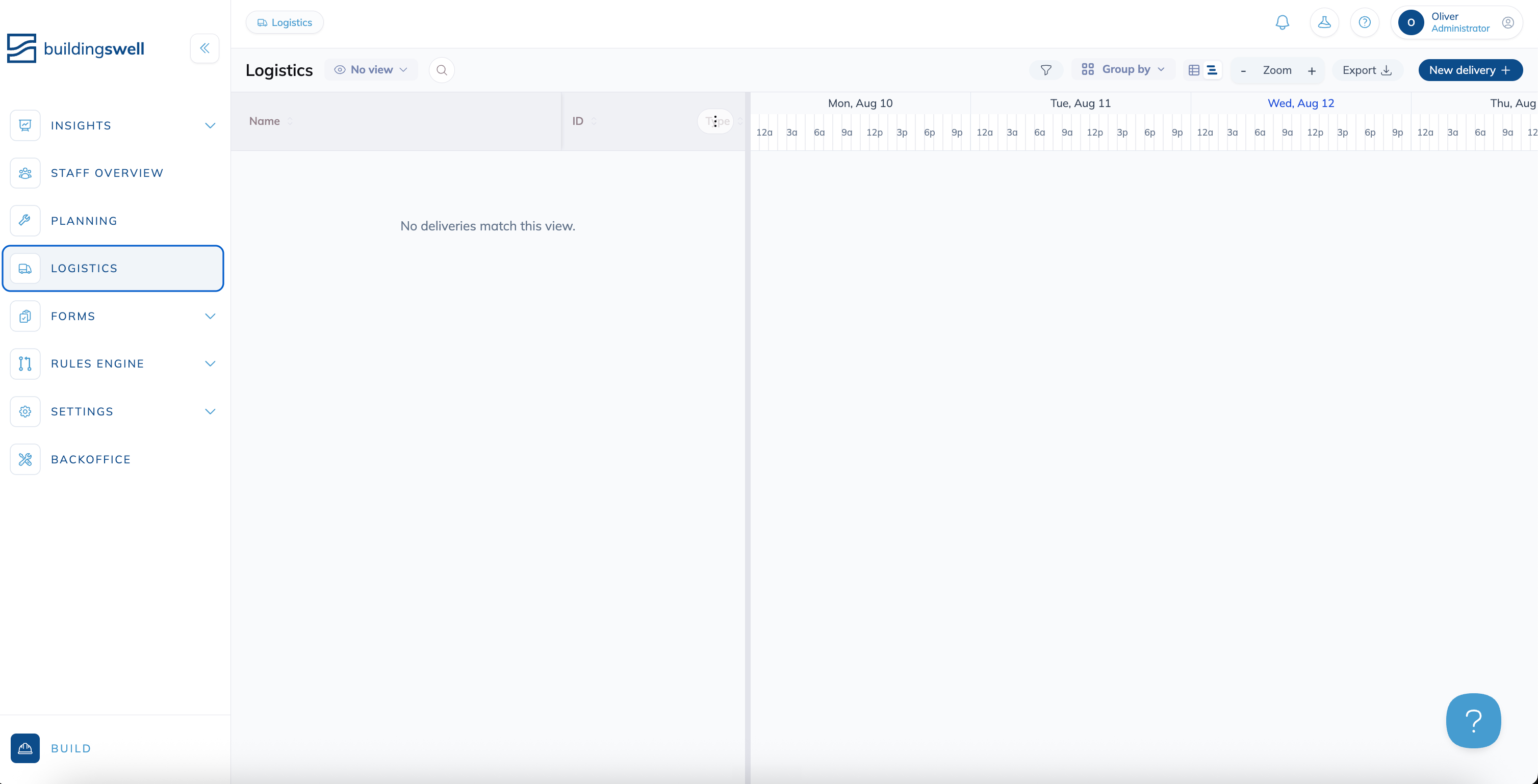
Deliveries live under Logistics in the main navigation. The page is called Logistics because it covers the whole schedule. Each individual trip on it is called a delivery.
Two screens are called Deliveries
Logistics is outbound: material leaving your shop. The Deliveries screen under Inventory is inbound: material arriving from a vendor, and where you receive it into stock.
Delivery directions
Every delivery has a direction. The direction decides what the trip means and which statuses it can use.
Delivery statuses
Statuses differ by direction. Outbound and Transfer share the same set.
Any delivery can also be Cancelled. Cancelled is final. So are Delivered and Received.
Whether everything actually arrived isn't a status. It's worked out from the cargo itself, so a trip that shows Delivered with three of four packs ticked off tells you the truth without needing a separate "partial" state.
The Logistics board
The board has three views. Switch between them with the table, timeline and calendar icons at the top of the page.
Table is a flat list. It's the fastest way to scan identifiers, statuses, origins, destinations, drivers and trucks.
Schedule puts the same trips on a timeline next to the table, so you can see what overlaps and where a truck is double booked.
Calendar lays the trips out by day, a month or a week at a time, with each day's work in order of time. The Dates button picks what shows: Delivery window, Stop window, Transit window and Expected date. Hover a bar to read its dates, and click it to open the delivery.
If you can schedule deliveries, drag a window to another day, then click Update schedule in the Update delivery schedule? prompt. Nothing changes until you confirm. If later stops in the itinerary have to move to keep their order, the prompt says how many. A window keeps its length on the calendar, so it moves but doesn't stretch. Expected dates can't be dragged.
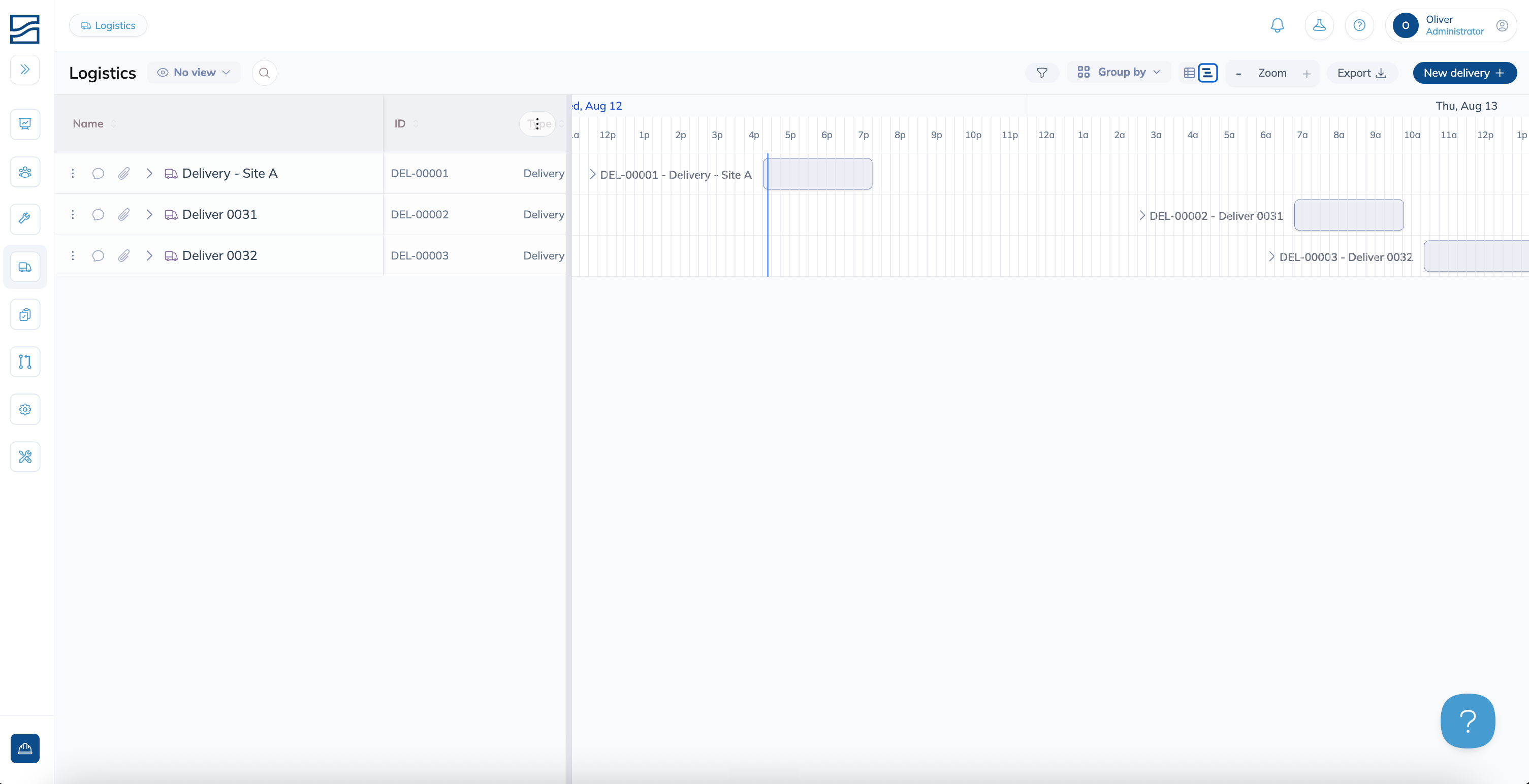
In Table and Schedule you can group by Direction, Location or Driver. Filters cover direction, delivery status, activity status, location, driver and a planned date range. Save any combination as a view so you don't rebuild it every morning. Export downloads whatever the current view is showing.
What to set up first
Four things need to be in place before deliveries work properly.
Tips
Start your locations high level and add detail later. A single "Loading Bay" is enough to run deliveries on day one. Zones, bays and racks can come once you know how your team actually talks about the space.
Driver and receiver pickers list all of your contacts, not just drivers. Search by name rather than scrolling.
Keep an eye on trips sitting in In transit. Filter the board by status now and then, because unfinished deliveries pile up quietly and someone has to close them out later.
Have additional questions? Contact Us
Was this helpful?
Still need help? Ask the team