Restoring Data
Last updated 9 days ago
Introduction
This guide provides you with a step-by-step walkthrough on how to restore archived data in Building Swell. This could be any item like a round, a person, a team, or even an order that you may have previously archived and want to bring back into your system.
Step-by-Step Guide
Step 1: Navigate to the Settings Tab
- Open your Building Swell dashboard.
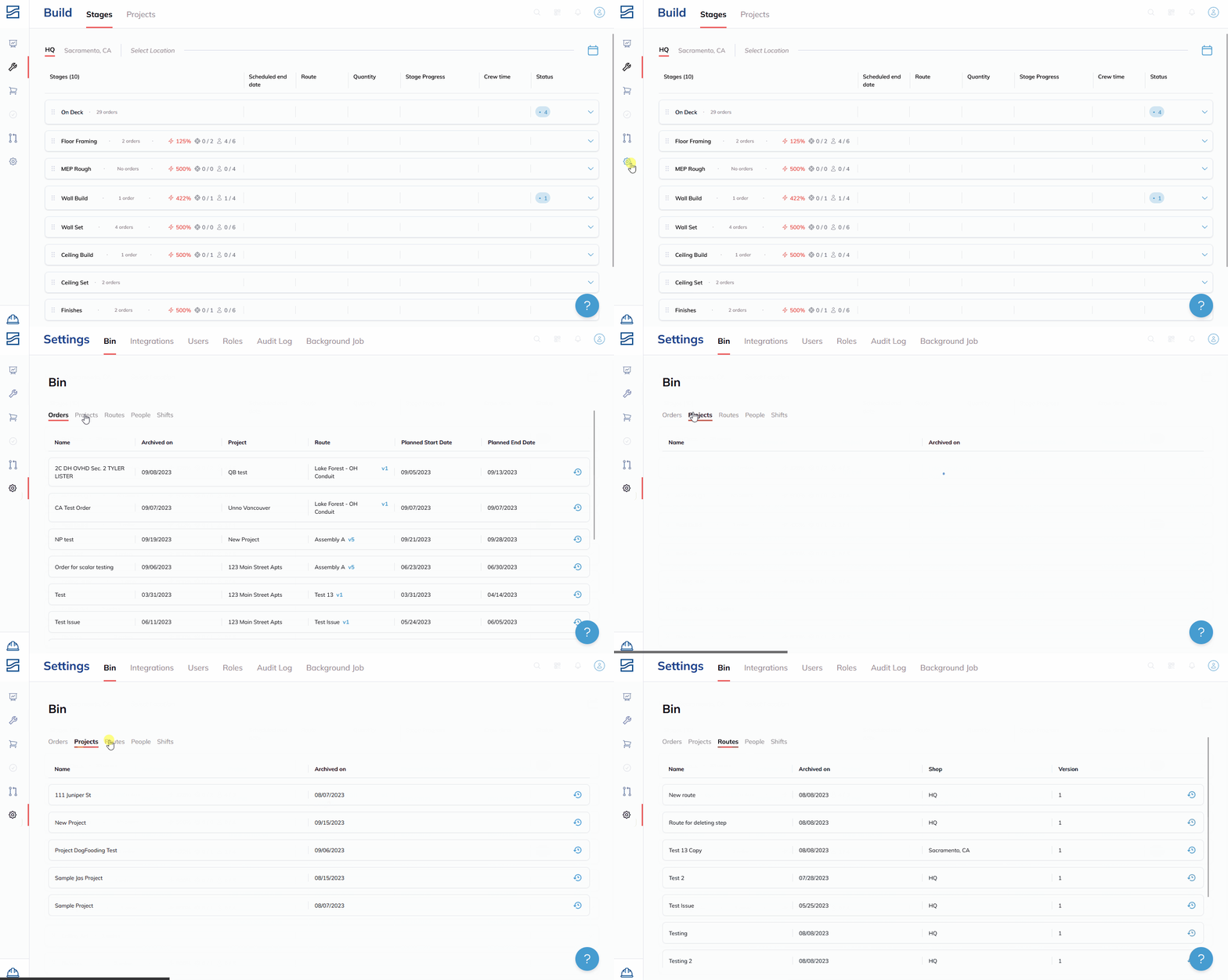
- Click on the Settings tab at the top of the screen. The first module that appears will be the Bin.
Step 2: Explore the Archive Bin
- Within the Bin, you'll see a list of items that have been archived.
- Navigate through the list to find the item that you wish to restore.
Step 3: Restore an Item
- Once you've found the item (e.g., a route, a person, a team, or an order), locate the Restore button on the right-hand side of the row.
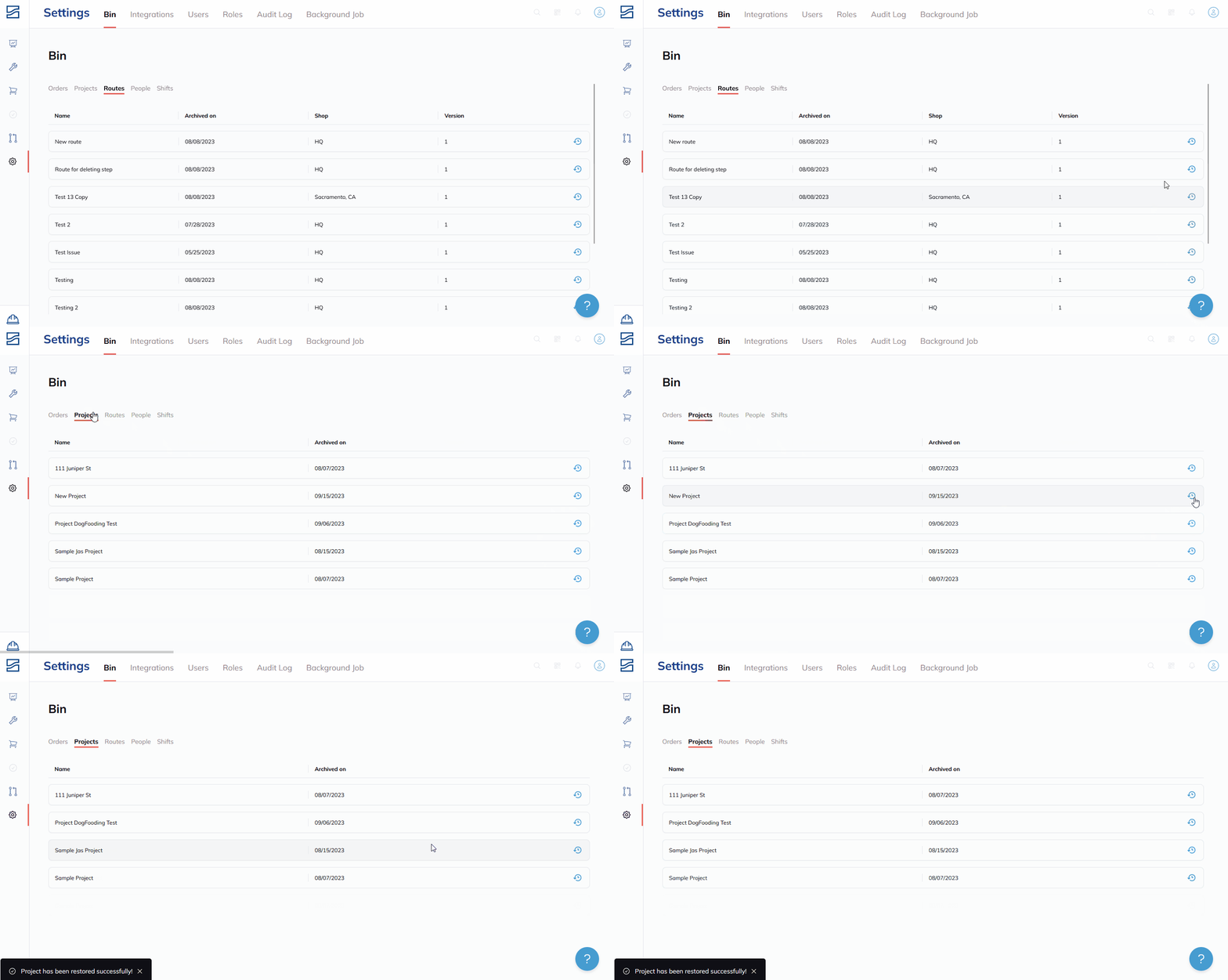
- Click on Restore.
- A pop-up confirmation will appear. Click on Confirm to proceed with the restoration.
Step 4: Confirm Restoration
- After confirming, you'll see the restored item back in its original location within the Building Swell system.
Tips & Tricks
- Always confirm that you're restoring the correct item to avoid data inconsistencies.
- You can use the search function in the Bin to find a specific archived item more quickly.
FAQ
Where do restored items go?
Restored items will go back to their original location within the Building Swell system.
Is there a limit to how many items I can restore?
As of the last update, there's no limit to how many items you can restore. But it's best to confirm with Building Swell's latest documentation.
Conclusion
Any removed data is kept in the Archive Bin and restoring archived data in Building Swell is a straightforward process. For more related guides, please refer to the Settings overview.