Planning: Import & Export
Add orders or update them from a spreadsheet, then check the import result.
Last updated About 9 hours ago
Introduction
Use a spreadsheet to add orders or make different changes across many rows. Export from Planning, edit the columns you need, and import the file back. To apply the same change to selected items, use Edit field directly in Planning.
Video walkthrough (1 min 19 sec): how to export orders from Planning, edit the spreadsheet, and import it back.
It is also how a schedule that lives somewhere else gets into Building Swell, which is why this is usually the first thing set up on a new project.
Step-by-Step Guide
Export Your Data
Open Planning.
Click Export. On a phone or tablet, tap Controls and pick Export.
The button reads Exporting… while the file is built, then downloads.
What you get is what you are looking at. Filter or narrow the view first and the export follows it.

What the Columns Mean
Only Name is required. Everything else can be left empty.
Ten columns are exported for reading only. Editing them does nothing, because Building Swell owns the values:
Path, Route Name, and Project Name. These are labels for your benefit. To change what a row points at, edit Route ID or Project ID instead.
Actual Start, Actual Finish, Completion %, Estimated MH, and Actual MH. The shop floor produces these. A spreadsheet does not get to overwrite what the crew recorded.
Created At and Updated At.
Everything else imports: ID, Name, Type, Parent ID, Route ID, Project ID, Quantity, Cycle Time, Duration, People Num, Tags, Due Date, Planned Start, and Planned Finish.
Notes for Editing the Spreadsheet
ID decides update or create. A row that keeps its exported ID updates that record. Clear the ID and you get a new record instead. So do not renumber the ID column to tidy it up.
Parent ID builds the hierarchy. Put the parent’s ID in a row’s Parent ID and it nests under it. You can reference a parent created in the same file, so a whole tree imports in one go.
Route ID and Project ID have to match something. They are looked up by identifier. Anything that does not resolve is reported against that row rather than guessed at.
Custom properties come through as their own columns, named Property: followed by the property name. Fill those in for hundreds of rows here and they come straight back.
Do not rename the headers. Columns are matched by their exact header text, and anything unrecognised is ignored.
Import It Back
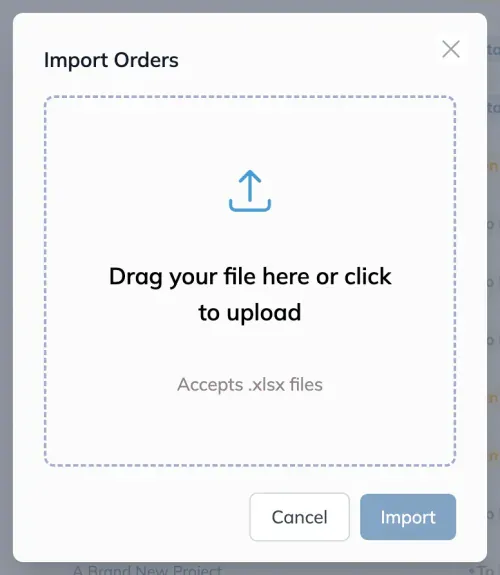
In Planning, click Import. On a phone or tablet it is under Controls.
Choose your file. It accepts .xlsx. If you are starting from scratch rather than from an export, Download a template gives you the sheet in the right shape.
Click Import. Building Swell checks the file before starting the import.
Correct any validation errors shown in the dialog. If changing routes prompts you about existing materials, review that choice before continuing.
Once the file passes its checks, the dialog closes and the import runs in the background. A progress card appears in the corner. You can keep working while it runs; a notification reports the result when it finishes.
Importing the same sheet twice is safe
An import only writes what actually differs. Re-importing an unchanged file tells you nothing was changed rather than touching every row, so there is no harm in importing again if you are not sure it went through.
When a Row Fails
Nothing is imported unless the file can be read. Problems are listed per row, and each one names the row number, the column, and what was wrong. Row 1 is the first row of data under the header, not the header itself.
The usual causes:
A required column header is missing from the file.
A required cell is empty, or a value is the wrong kind for its column.
A Parent ID, Route ID, or Project ID that matches nothing.
A date or number that cannot be read. This is the common one, and it is usually a cell the spreadsheet formatted its own way.
Fix the rows it named and import the file again.
Tips and Tricks
Export first, always. Even when adding new work, start from an export so the headers and IDs are already right.
Keep the ID column alone. Most import trouble is someone having sorted or rewritten it.
Format dates as dates. A column the spreadsheet has decided is text is the most common failure.
Try a few rows first on a big change. The errors tell you what the rest of the sheet will do.
FAQ
Will importing create duplicates?
Not if the ID column is intact. Rows keep their ID and update. A blank ID is what creates something new.
I edited Completion % and nothing happened.
That column exports for reading only, along with the actual dates and man hours. Progress belongs to the shop floor and cannot be set from a spreadsheet.
Can I build the whole order tree in one file?
Yes. Reference a parent in the same file by its Parent ID and the hierarchy is created together.
Why did my export not include everything?
An export follows the view. Clear your filters and export again.
Conclusion
Keep the ID column intact when updating existing orders. Correct any validation errors before importing, then check the result notification when the work finishes.
Was this helpful?
Still need help? Ask the team