Attendance
Check your shop team in and out for the day, by hand or by QR scan.
Last updated About 8 hours ago
Introduction
Tracking attendance for your shop team in Building Swell is simple and efficient. This guide will walk you through using hardhat mode to manage attendance, including both manual and QR code methods.
Video walkthrough (1 min 16 sec): how to open Attendance from Build and check team members in and out by name or by QR scan.
Step-by-Step Guide
Accessing Attendance
-
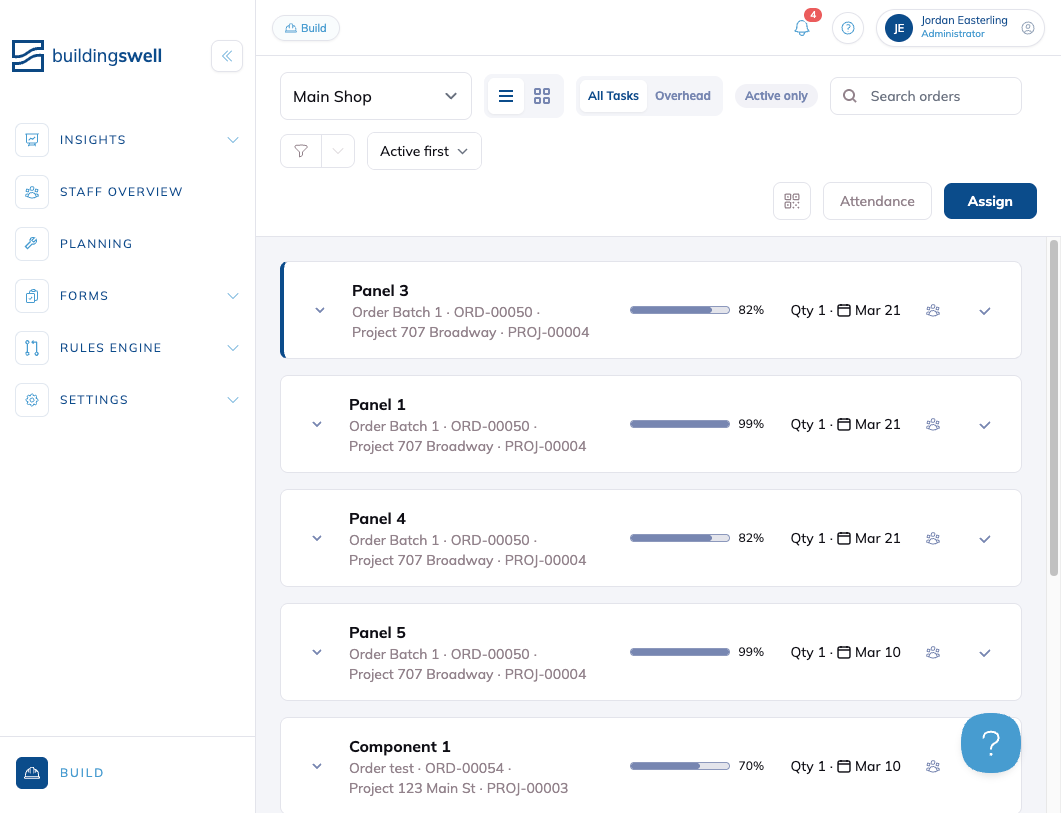
Head to Build
-
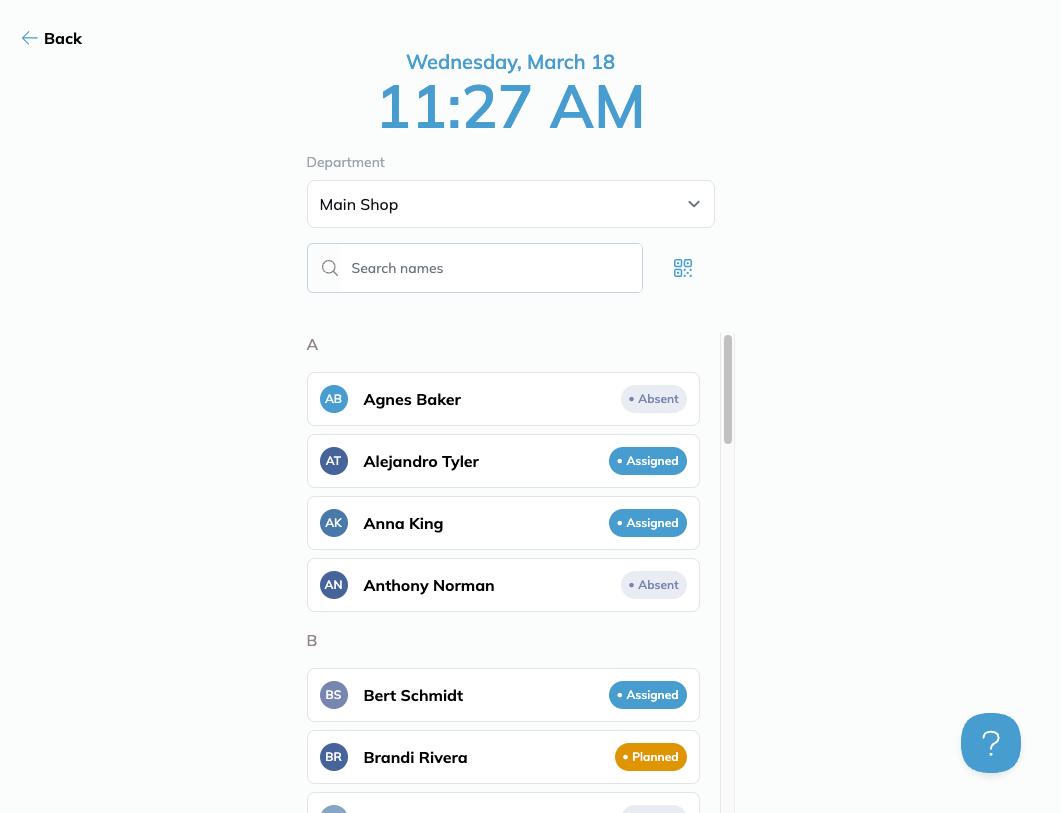
In the top right corner, click the "Attendance" button. On a phone or tablet, tap Controls and pick Attendance.
Recommended Setup
Dedicate a tablet in your shop specifically for attendance, though other methods can be used based on what works best for your shop.
Signing In Team Members
- Manual Check-In
- Scroll through the list or use the search bar to find the person's name.
-
Click on the user’s name to be directed to the check-in option.
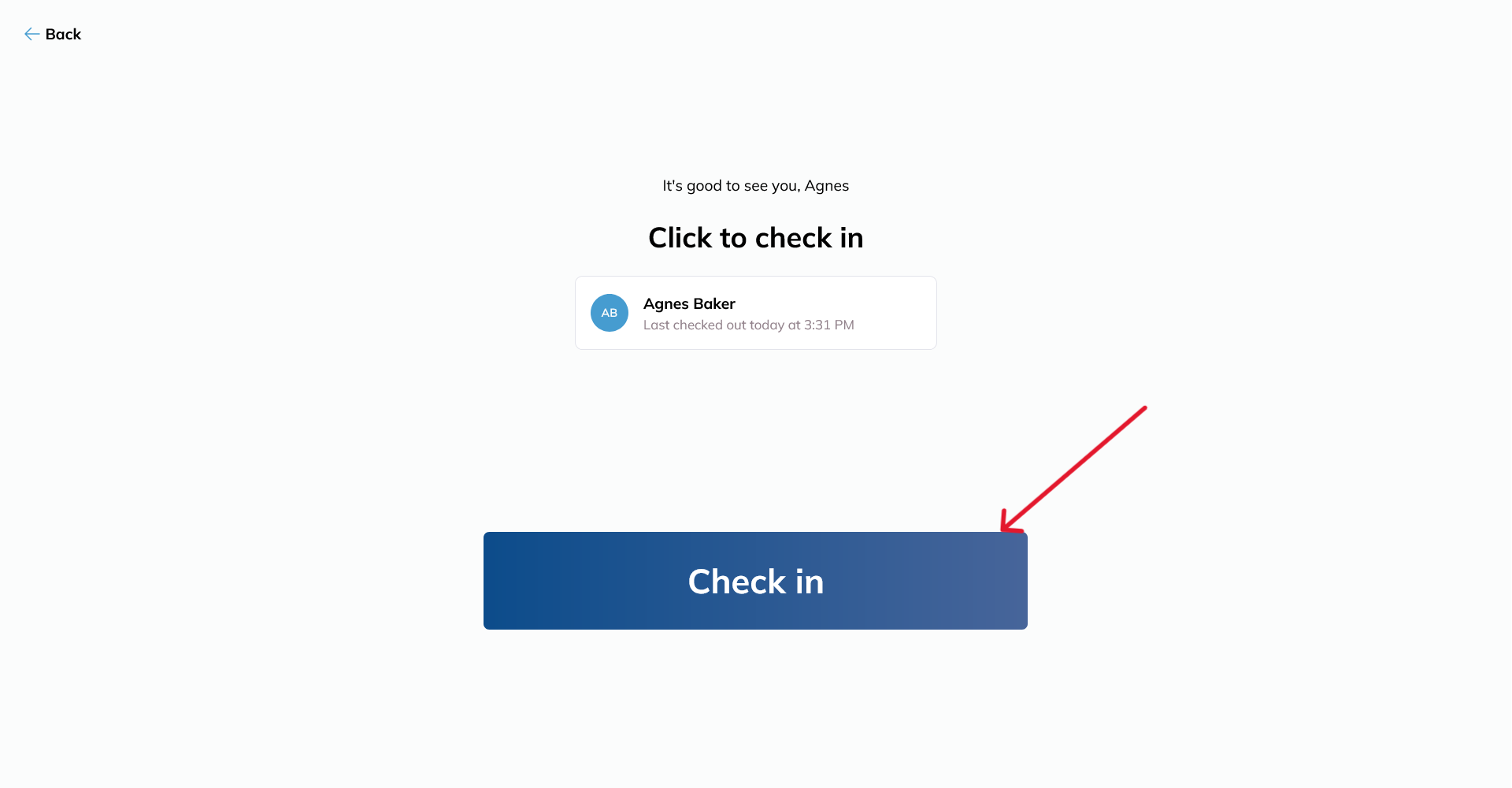
- If work has already been assigned, the first task for the user will be displayed, including the stage and order they’re working on.
-
Click "Check-In" to complete the process.
- QR Code Check-In
-
Click the QR button at the top.
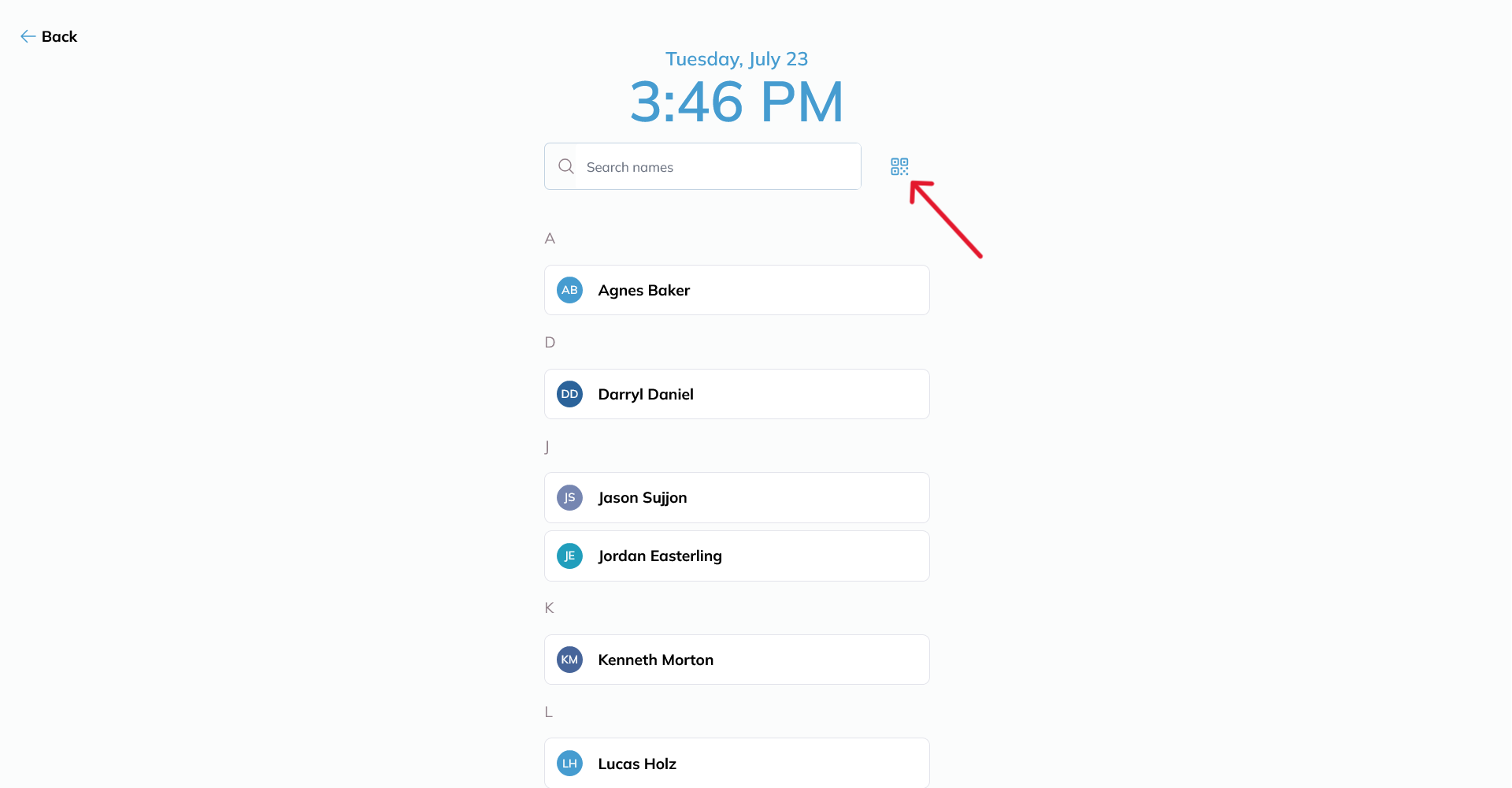
- Use the device's camera to scan the user's badge or QR code.
-
Once scanned, the check-in option will be presented.
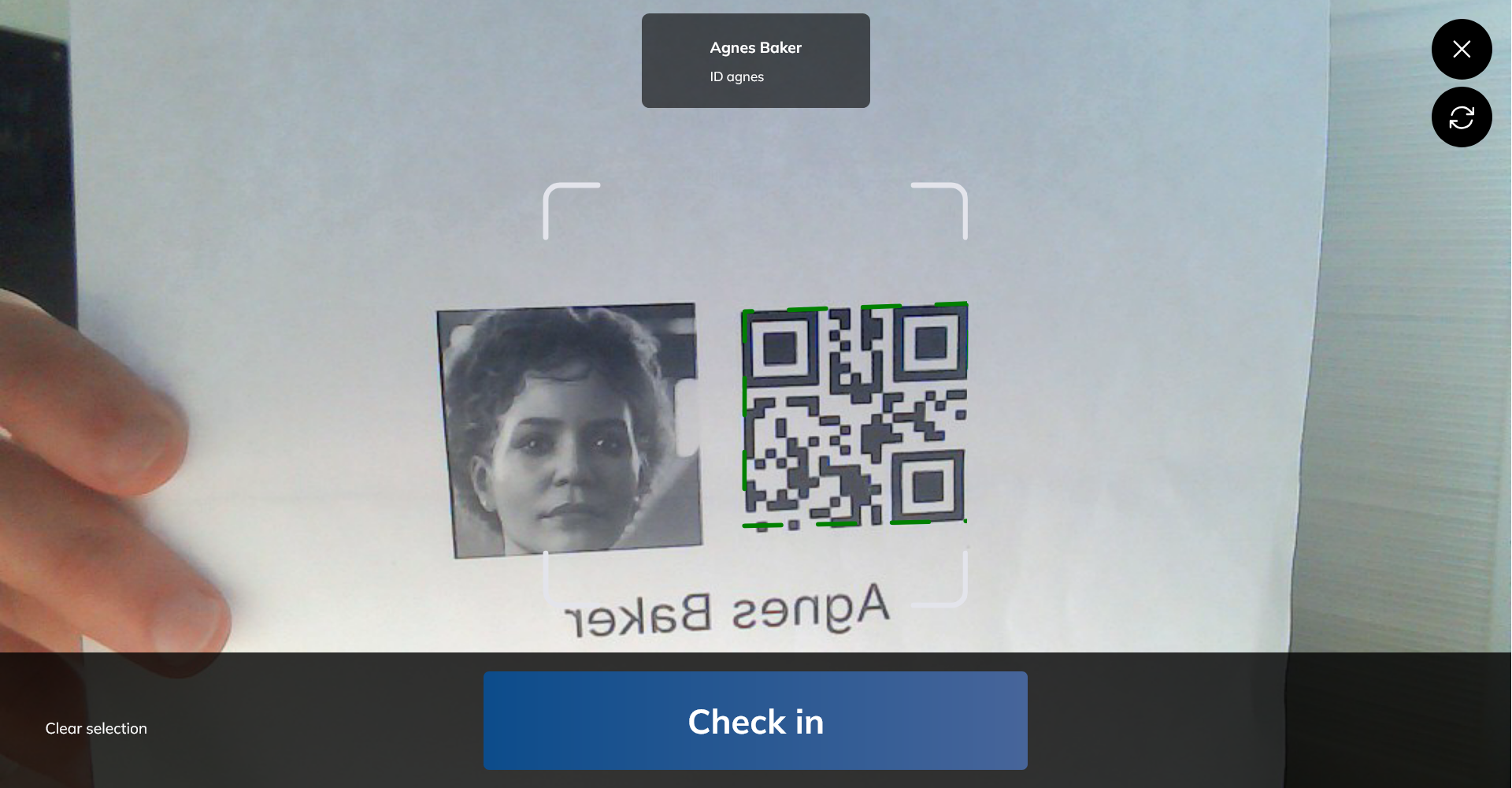
- Click "Check-In" to complete the process.
- Repeat for each user by scanning their badge and checking them in.
-
Signing Out Team Members
- Manual Check-Out
-
Select the user’s name from the list.
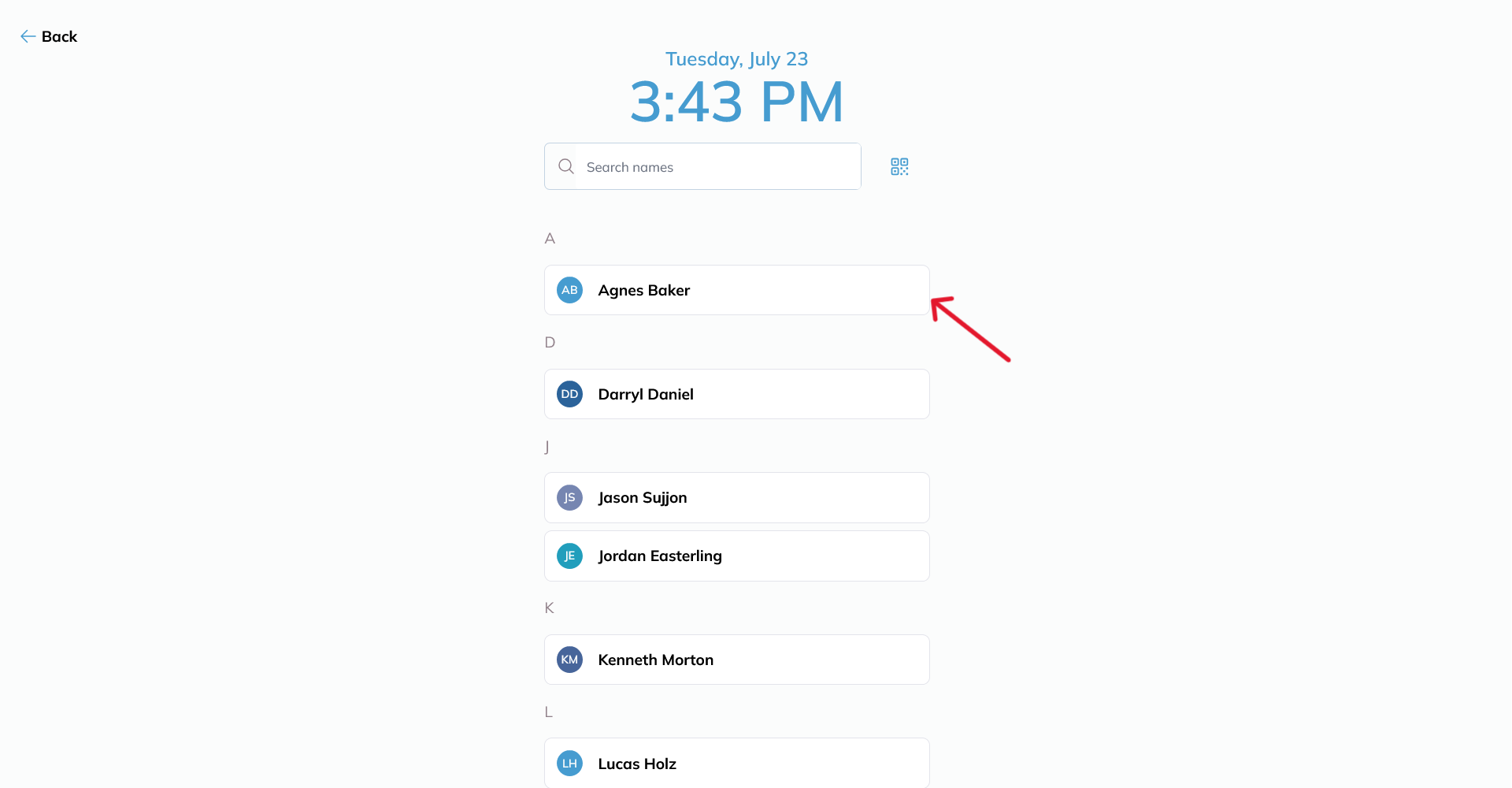
- Click "Check-Out" to complete the process.
-
- QR Code Check-Out
-
Click the QR button at the top right.
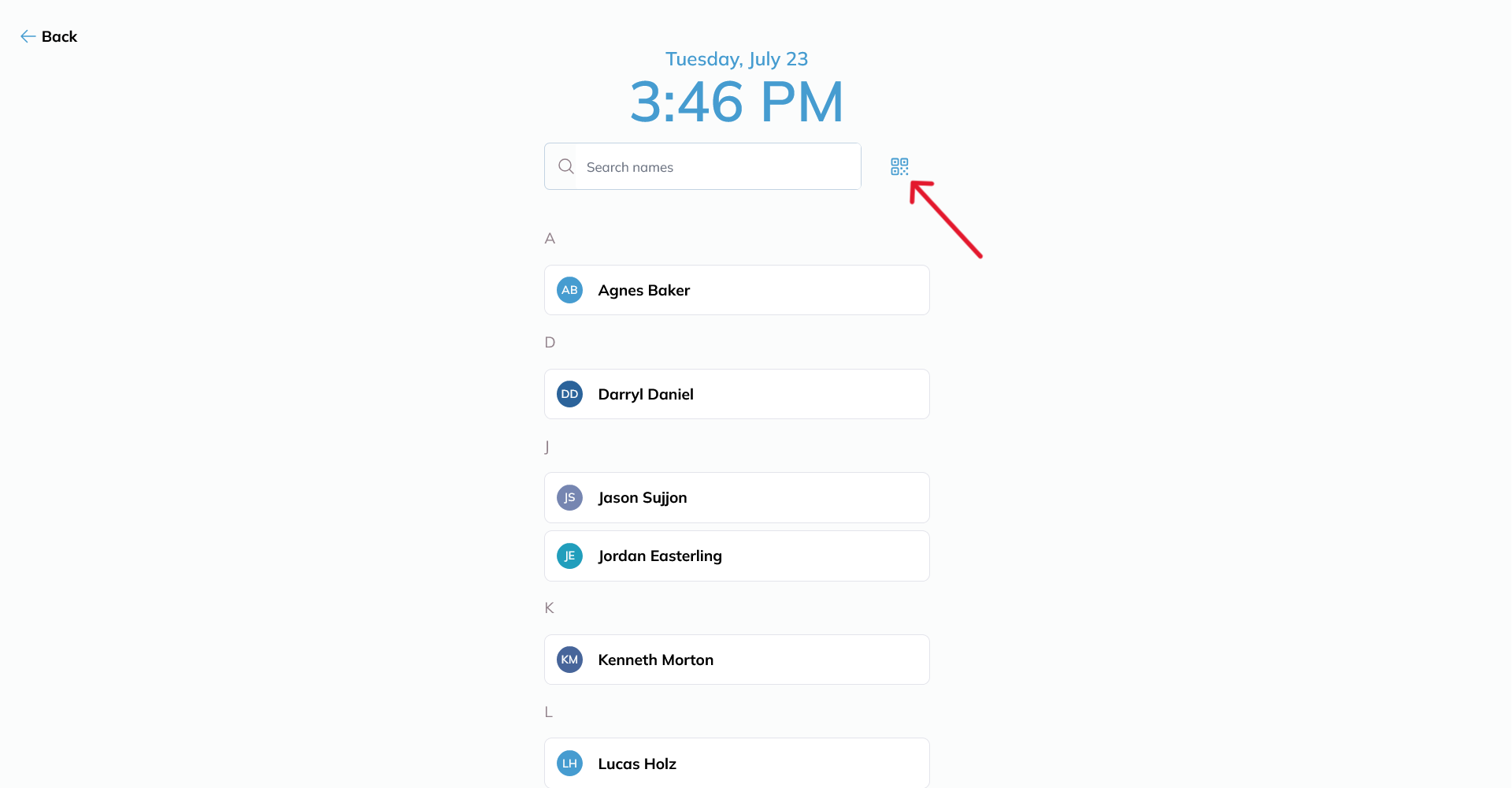
- Use the device's camera to scan the user's badge or QR code.
-
Once scanned, the check-out option will be presented.
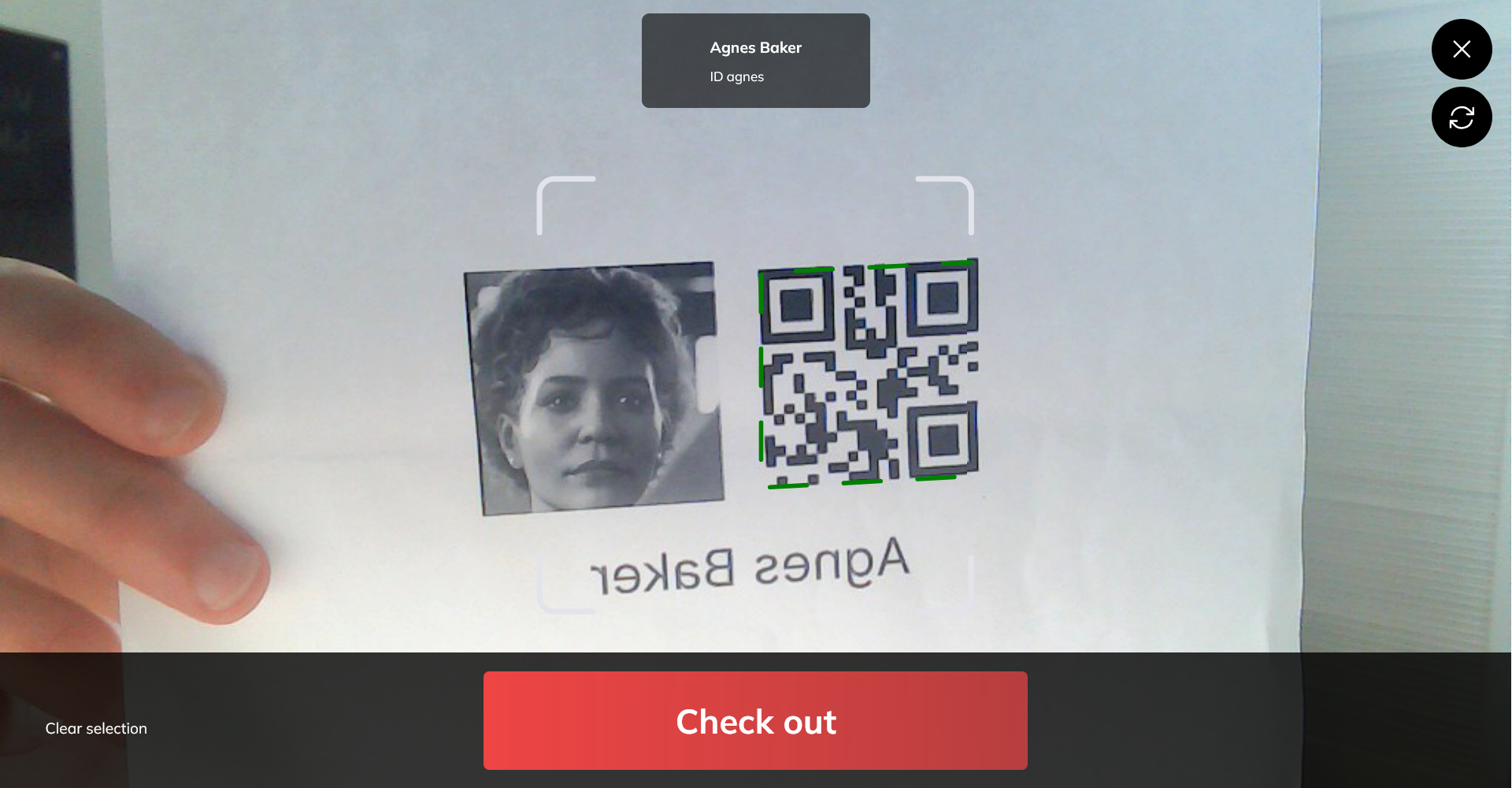
- Click "Check-Out" to complete the process.
-
Check-in fails
If you see "Check in failed, please try again," an earlier check-in may still be open. It can be from a previous day or another department. This can affect both manual and QR check-in, even when an admin is signed in.
Check whether the person has an attendance record with no check-out, including in another department.
In Build, open Attendance, select that department, and check the person out.
Have someone with permission to edit Timesheets correct the check-out and any affected session times to the hours actually worked.
Try checking in again.
To prevent sessions being left open, set an Auto-Stop Session Threshold in the department settings. See Departments for the steps and the limits on closing older records.
If there is no open attendance record, or check-in still fails after closing it, use the help button in the bottom right or email support@buildingswell.com. Include the person, department, error message, and time of the attempt.
Timesheet Integration
All attendance data will automatically generate shop timesheets, making it easier to track who was present in the shop and what projects they worked on.
Tips and Tricks
- Dedicated Device: Put a dedicated tablet at the door. It cuts the queue at shift start.
- Batch Check-ins: Use the QR code method to check in several people quickly.
Conclusion
Attendance tells you who is in today, and it feeds the hours on their timesheet. Follow these steps to check your team in and out.
Was this helpful?
Still need help? Ask the team