Timesheets
Manage your team's logged hours by department.
Last updated 9 days ago
Introduction
Timesheets is where your team's hours end up. Office staff log their own time here, and leads review, approve and export it.
Each person gets a weekly table, with one row per task and one column per day. You type how long you spent on a task, never a start and end time, and Building Swell fits the time into your shift.
There are two tabs on the same hours. Check in/out is the weekly table: who was here, for how long, and which tasks the time went to. Sessions lists every session as its own row, for when you need the detail.
Before you start. Your departments and shifts need to be set up in Building Swell.
Step-by-Step Guide
1. Opening Timesheets
Under Insights in the left navigation, click Timesheets.
Pick Check in/out or Sessions at the top of the page.
Choose 1 week or 2 weeks.
Use the arrows to move between periods. This week brings you back to the current one, or This period when you're showing 2 weeks.
Click Filters and pick one or more departments under Department. You can also filter by Team, Members, Orders, Stage and Issues.
Departments are a filter, not tabs. Select several to see a person's whole week when they work across departments, like someone who splits the week between the plant and a jobsite.
2. Logging Hours
Each person has a row with their total hours for each day. Click a name to open it: the Check-in row comes first, then one row per task grouped under its phase or component, then the totals.
Click the cell for the task and the day.
Type how long you worked on it, like 3h, 1.5, 3h 30min, 90m or 1:30. You can also tap a quick amount: 15m, 30m, 1h, 1.5h or 2h.
Press Enter or click away to save.
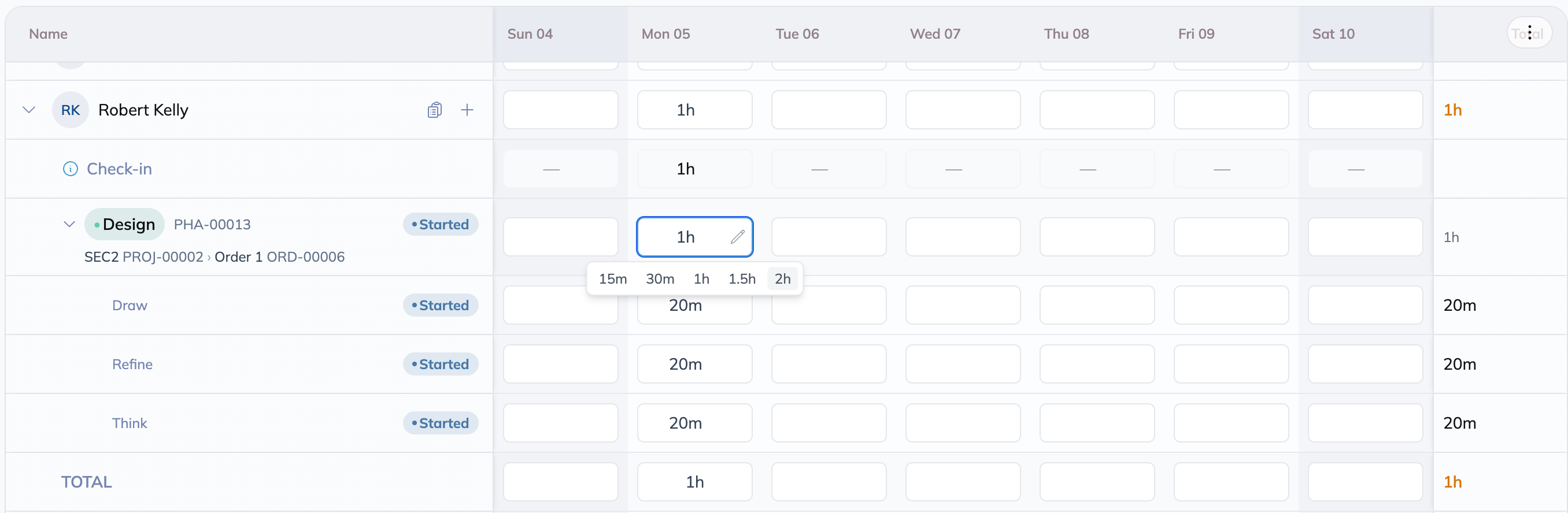
Tab moves to the next cell, and Escape cancels what you typed.
Building Swell turns the number into a session for you. The first entry on an empty day starts at the shift start, and each one after it picks up where the last one ended. On a 7:00 to 3:30 shift, typing 2h on Design and then 1h on Drafting saves Design from 7:00 to 9:00 and Drafting from 9:00 to 10:00. If you change a cell later, the sessions after it move so nothing overlaps.
Typing on a collapsed phase or component, or on a person's day total, splits the hours across the tasks under it in proportion to the time already on them. If the new number is lower than what's logged, Timesheets asks before it takes hours off.
Your check-in follows your sessions. The day's check-in is set from the start of your first session and the check-out from the end of your last, so you don't need to clock in separately. A check-in someone entered by hand stays as it was.
Logging time on a stage that hasn't started yet marks it Started. A cell with a session still running on it is locked until that session is stopped.
3. Adding Tasks to the Week
A person's Planning assignments wait in their Assigned list. A task shows in the table once it's added to the week.
On the person's row, click the Task list icon.
Narrow the list with Project, Due date or Status, or search it.
Click Show in this week on a task. On a phase or component, Show all in this week adds every stage under it.
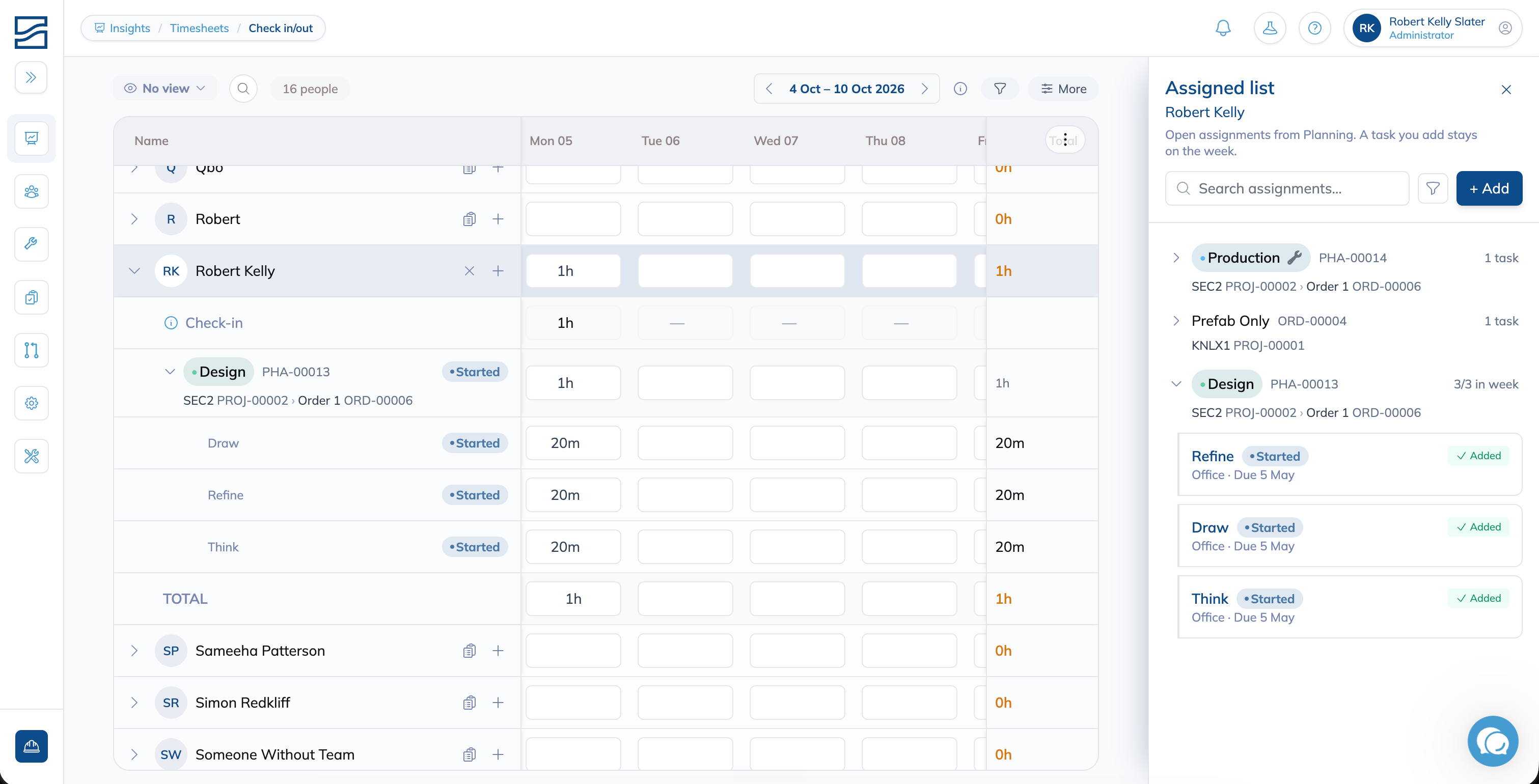
For work that isn't assigned:
On the person's row, click the Add task icon.
Search for a stage or overhead by its name, its order or its phase. Before you type, the list starts with what was logged recently.
Pick the stage. Each result shows the path from the order down to the stage, so two stages with the same name are easy to tell apart.
A task added without hours stays on that week for whoever added it, on any device. To take a task off the week, click the Remove task icon on its row. Timesheets warns you first, because the time logged on it that period goes with it.
Adding a task can change Planning. If your role can change who is assigned to a stage in Planning, adding a task here assigns that person in Planning too. Otherwise the task only joins the week. Removing a task takes it off the week and leaves the Planning assignment as it is.
4. Updating Progress
Click a task's name. The Update progress drawer opens for that stage.
Tick off the steps that are done and close it.
Clicking a phase or component heading opens Update progress on all of its stages at once.
5. Reviewing and Approving
Coloured dots on a day flag what needs a look. Hover a day to see each issue, open Legend for the full key, or pick an issue under Filters and Issues to see only the people who have it.
No session hours. No session hours are logged for this day. Fix before payroll.
No check-in. Session hours are logged without a matching check-in. Fix before payroll.
Overlapping sessions. Two or more sessions share the same time, so it counts twice.
Check-in/session gap. More of the checked-in time went unlogged than the department allows.
Over shift hours. More hours are logged than the shift.
No shift. Time is logged on a day the person has no shift, so it can't be checked against a schedule.
Pay types. The pay-type split doesn't add up to the paid check-in time.
Absent. No records for this day.
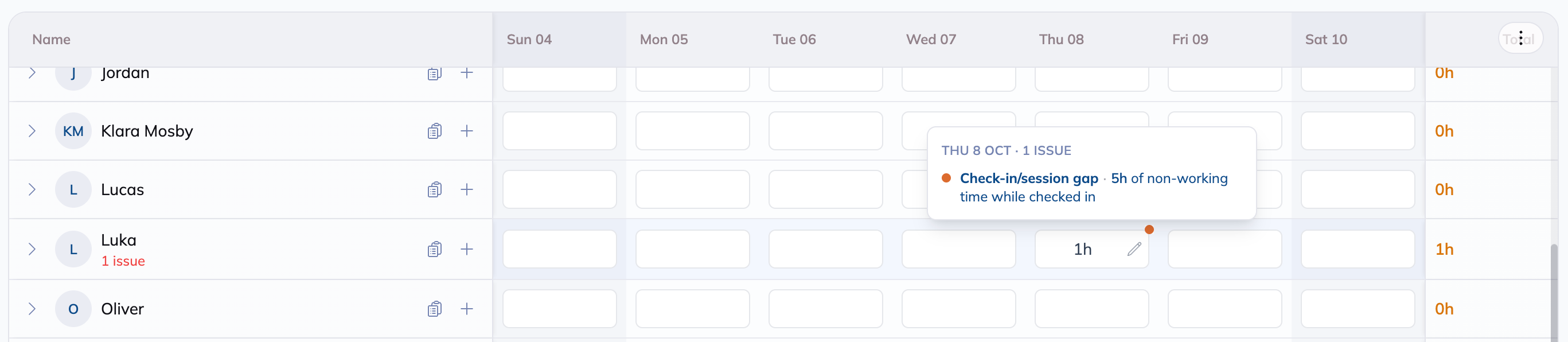
Days that haven't happened yet never show an issue.
To approve a day:
Click the edit icon on the right of the day's cell to open the day details.
Click Approve.
Approve covers the person's whole day in every department you can see, and names the departments when there's more than one. If anyone edits the day afterwards, it goes back for approval.
Set how big a gap has to be. Check-in/session gap shows up when unlogged time passes the department's Check-in Gap Threshold, from 15 minutes to 2 hours. Every department starts at 30 minutes. Change it on the Settings tab in Departments.
6. Editing a Day in Detail
For start and end times, comments or payroll codes, open the day details: click the edit icon on the right of any cell, or press Shift+Enter while you're in one. From there you can:
Edit check-ins: Check in, Check out and Department.
Edit or delete sessions, and add a note to one with Add comment.
Click Add work session to log a session with exact times.
Split the day across payroll codes on the Pay Types tab. See Pay Types.
Record time off or extra hours for that day.
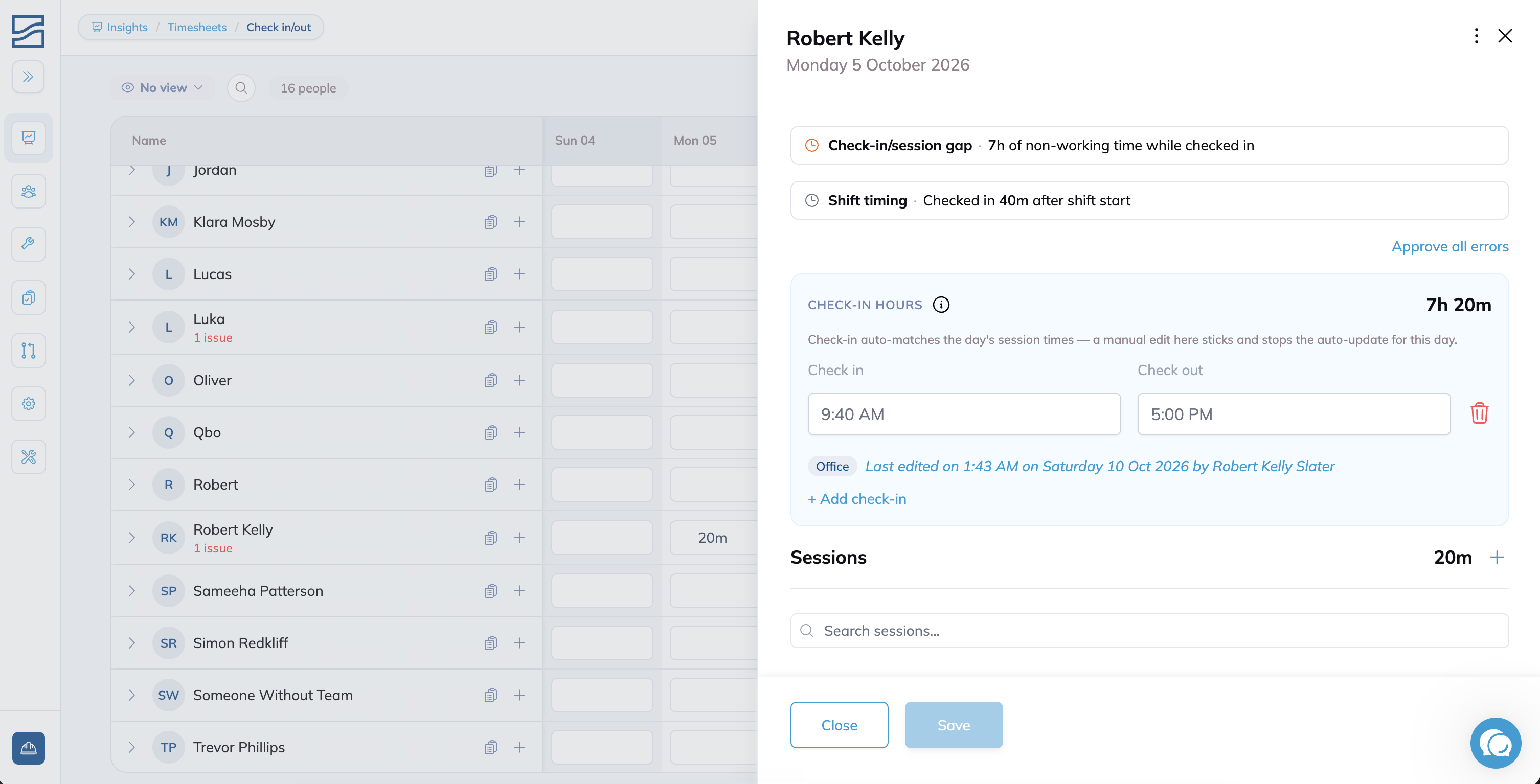
Hours can be rounded to the shift. When a department rounds, a check-in or check-out inside its grace period is recorded at the scheduled shift start or end, and that is the time Timesheets shows. Rounding runs a full day after the last session of that day ends, so the current week still shows the times people clocked. Set it per department under Departments.
7. Managing Sessions
On the Sessions tab, click New Session to create a session.
Select the person, choose the session type (Order Session or Overhead Session), and fill in the details.
To edit an existing session, click its row to open the edit panel and make your changes.
The Department filter lists each session under its stage's department, the same way Check in/out does.
8. Exporting and Importing
Both tabs have Export and Import at the top of the page, and they share one file layout. You can export a week, fix it in a spreadsheet and import it back.
Set the departments, the period and any filters you want the file to reflect.
Click Export.
You get one row per session, and from Check in/out one check-in row per person per day as well. The columns are Name, Worker Identifier, Order name, Order ID, Task name, Task ID, Type, Path, Project, Project ID, Stage, Stage ID, Cost Code, Date, Start time, End time, Hours, Break hours, Shift hours, Status and Comment. Hours is decimal, with break time already taken out.
To bring time in:
Click Import.
Upload a file in the export's layout.
If a row can't be read, the error names the person, the task and the day, with its row number in your spreadsheet.
Both exports follow what is on screen. The departments, the dates, the people search and every filter carry into the file. Narrow the view first rather than exporting everything and cutting it down in the spreadsheet.
Tips
Log a little, often. A minute after lunch and another at the end of the day beats rebuilding the week from memory on Friday.
Save your filters as a view. Set your department and yourself once, save it, and Timesheets opens straight on your week.
Clear the payroll issues first. Filter by No session hours and No check-in under Issues and work down the list.
Narrow the view before you export. Setting the filters here beats trimming a spreadsheet afterwards.
For where hours come from in the first place, see Tracking Time.
FAQ
Why did my check-in time change on its own?
Check-in follows your sessions. When you add or change hours, the day's check-in moves to the start of your first session and the check-out to the end of your last. A check-in entered by hand isn't touched.
I'm assigned to a stage in Planning. Why isn't it in my table?
Assignments wait in your Assigned list until they're added to the week. Click the Task list icon on your row, then Show in this week.
Why can't I type in a cell?
Either a session is still running on that task, and the cell unlocks once it's stopped, or your role can view Timesheets but not edit it. Reach out to your company admin to update your permissions. See the Roles guide.
Conclusion
Timesheets turns a week of switching between jobs into a few typed numbers, and gives leads one place to check and approve them before payroll.
Have additional questions? Contact Us
Was this helpful?
Still need help? Ask the team