Pay Types
Split each day's paid hours across your own payroll categories.
Last updated About 1 month ago
Introduction
Pay types let you split a worker's paid hours into your own payroll categories, like Regular, Overtime and Double Time. Building Swell captures the hours; you decide how each day gets split, and payroll receives your codes rather than a single block of straight time.
Building Swell does not work out the split for you. Overtime rules vary by union, agreement and jurisdiction, so the classification stays yours and the system records it.
Before you start. Pay types are off until an admin turns them on under Settings, in Company. Until then nothing changes on the timesheet.
Step-by-Step Guide
1. Turning On Pay Types
Go to Settings and open Company.
Find the Pay types card.
Click + Add pay type and enter a name and a payroll code for each type you pay against.
Switch on Split hours across pay types.
Click Save.
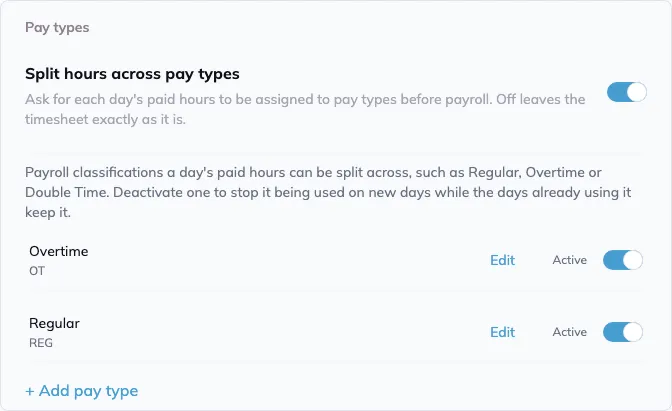
The setting applies to the whole company, not to a single department or person. The list starts empty, and the split only takes effect once at least one pay type is on it, so add your types before you switch it on.
2. Building Your List of Pay Types
Each pay type carries a name your team reads and a payroll code that payroll reads. Regular, Overtime and Double Time are the usual set, but the list is yours: add a type for anything you pay against.
Match each code to the one payroll already uses. The code is what lands in the export and the API.
Click Edit on a type to change its name or code. Days already recorded under the old code are updated in the background, so an export taken straight after a rename can still show the old code for a moment.
Switch a type off with its Active toggle to stop it being used on new days. Nothing on the list is deleted: days already using a retired type keep it, and it still shows on those days, marked retired.
3. Assigning Hours to Pay Types
Go to Timesheets under Insights and pick the department.
In the Check in/out view, click a day to open the detail panel.
Switch from Check-in/out to Pay Types.
Enter the hours against each type, or click + Fill beside a type to put everything still missing on it. The header tracks what you have Added and what is still Missing.
Click Save.
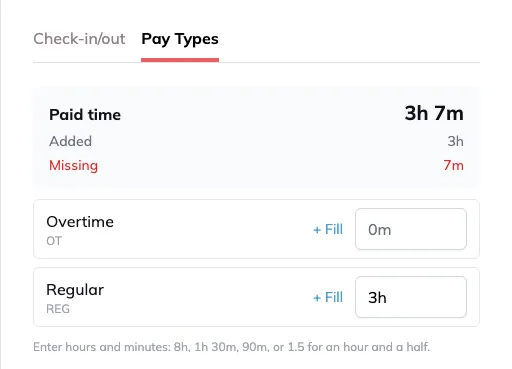
The split belongs to a check-in/out entry, not to an order, stage or session. The number you have to reach is that entry's paid time, meaning the time between check-in and check-out minus scheduled break time. If somebody clocked in and out more than once in a day, each entry gets its own split, labelled by its times, and the export adds them up per day.
You can type hours and minutes as 8h, 1h 30m, 90m, or 1.5 for an hour and a half. A partial split still saves, so you can come back to a day you are still working through, but the day stays flagged until it balances.
4. Finding Days That Are Missing a Type
When an entry's split does not match its paid time, the timesheet flags the day in red. Missing Type means hours are still unassigned. Check Types means more hours were assigned than the entry holds, which happens when a day's times are edited down after it was split.
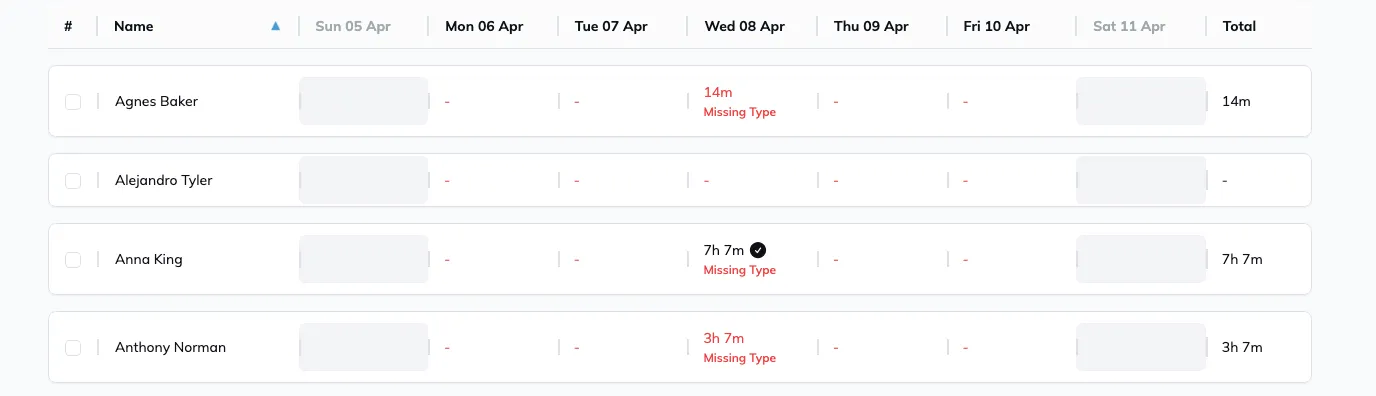
Turn on Show errors only to pull the flagged days together and clear them in one pass.
Open a flagged day and the panel says Pay types don't add up above the tabs. The approval control stays hidden until the split balances, so a day cannot be approved with hours unassigned.
An entry with a check-in still open has nothing to classify yet. It is not flagged, and its split appears once the worker clocks out.
5. Getting Pay Types Out of Building Swell
Pay types come out two ways.
Export: the Check in/out download from Timesheets carries one column per pay type for each day, headed with the day and the payroll code, alongside that day's Check-in, Check-out, Hours and Notes. A retired type that still has hours in the range keeps its column, so nothing drops out of the sheet. Set the department, the date range and any filters first, then use the ⋮ menu and choose Download as .csv or Download as .xlsx.
API: each check-in/out record carries its split as payroll code and time, so a payroll integration reads your codes rather than a single daily total. Your list of pay types is readable through the API as well.
Tips
The split is yours, not ours. Building Swell will not turn a nine-hour day into eight and one on its own. It records the eight and one you enter.
Editing hours later does not move your split. Change an entry's times after you have classified it and the split stays put, which can push the day back into Missing Type or Check Types. Reopen it and rebalance.
Turning it on flags the past too. Every closed entry without a split shows Missing Type, including earlier pay periods, so expect red when you scroll back. Nothing is reclassified for you, and turning the setting off hides the tab and the export columns without deleting the splits you entered.
Agree on codes with payroll first. A rename carries across in the background, but the export reads the code as it stands at the time, so settle the codes before the first day gets classified.
For the rest of what the Timesheets page does, see Timesheets. For where the hours come from in the first place, see Tracking Time.
Conclusion
Pay types give payroll the breakdown it needs without anyone splitting hours by hand downstream. If you've got questions, reach out and we'll help you get sorted.
Have additional questions? Contact Us
Was this helpful?
Still need help? Ask the team