Planning Shop Teams
Set up your teams, plan them around skills, and tie them to the stages they run.
Last updated About 1 month ago
Updating and Planning Teams in Building Swell: A Guide to Team Configuration
Introduction
A team is a group of people who work together on the floor. You will update teams, plan them around the skills each person has, and tie them to the stages they run.
Step-by-Step Guide
Navigating to Teams
- Go to the "Rules Engine" and click on the "Teams" tab.
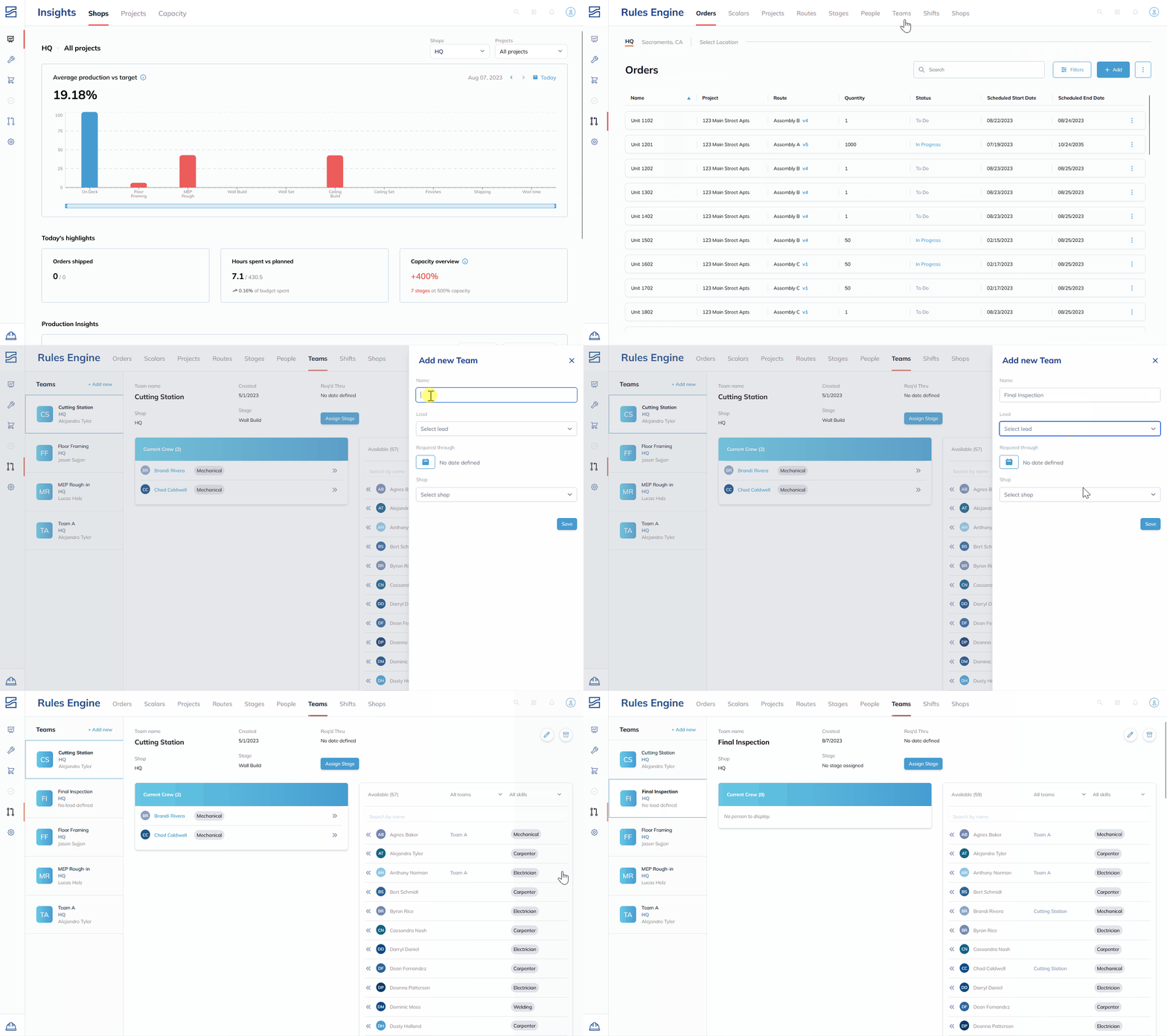
Creating a New Team
- Click on "Add New" in the top left corner.
- Name the team (e.g., "Welding").
- Select the shop for the team, like "Headquarters".
- Set a "Required Through Date" if the team is temporary. If not, leave it blank.
- Save the newly created team.
Adding Members to the Team
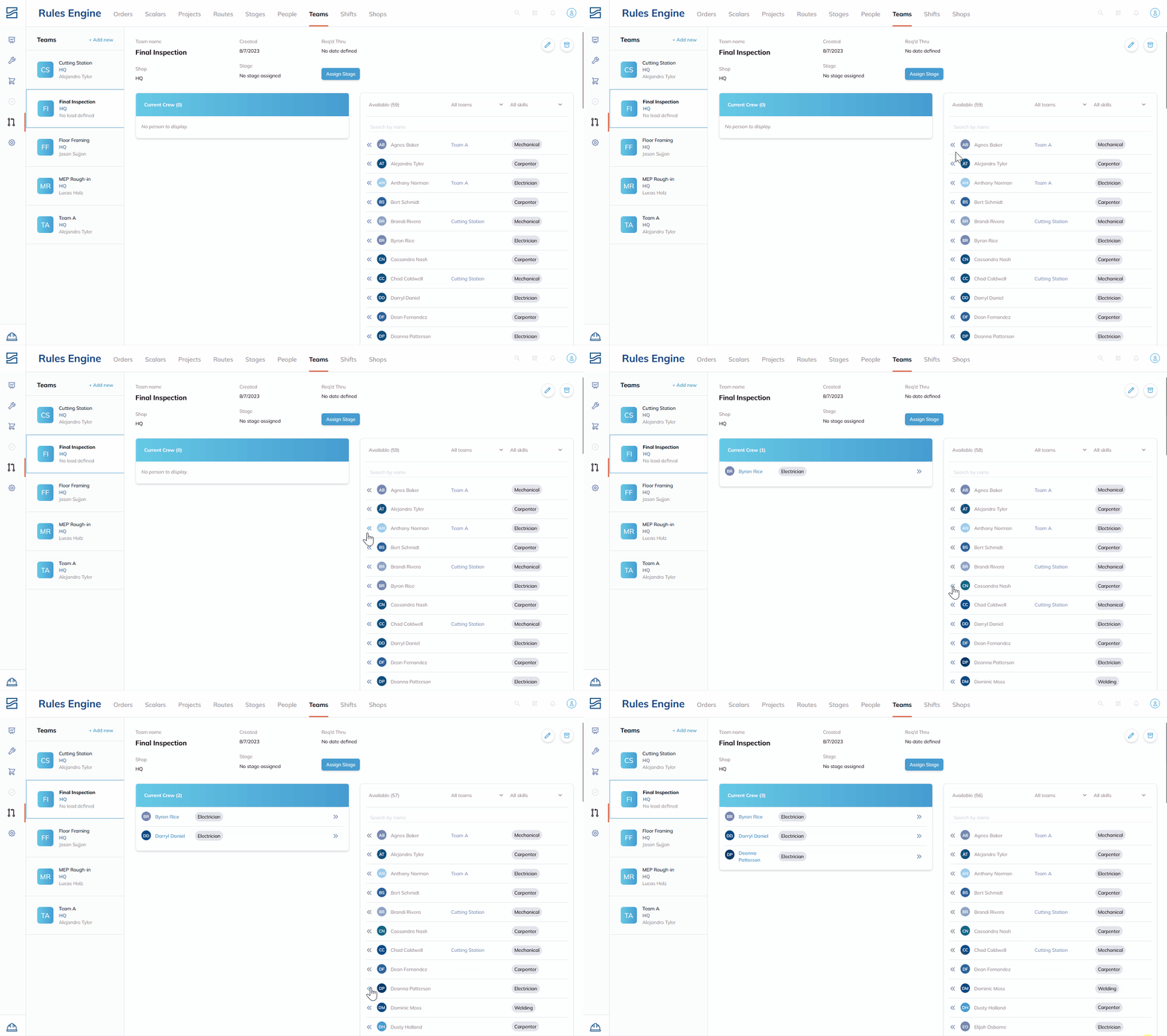
- Navigate to the newly created team.
- To add members, click on the left-pointing arrows.
- To filter members based on skills, use the skills dropdown (e.g., "Carpenter"). This can help in adding specific members like "Cassandra".
- To remove an unintended member, use the right-pointing arrow beside their name.
Assigning Teams to a Stage
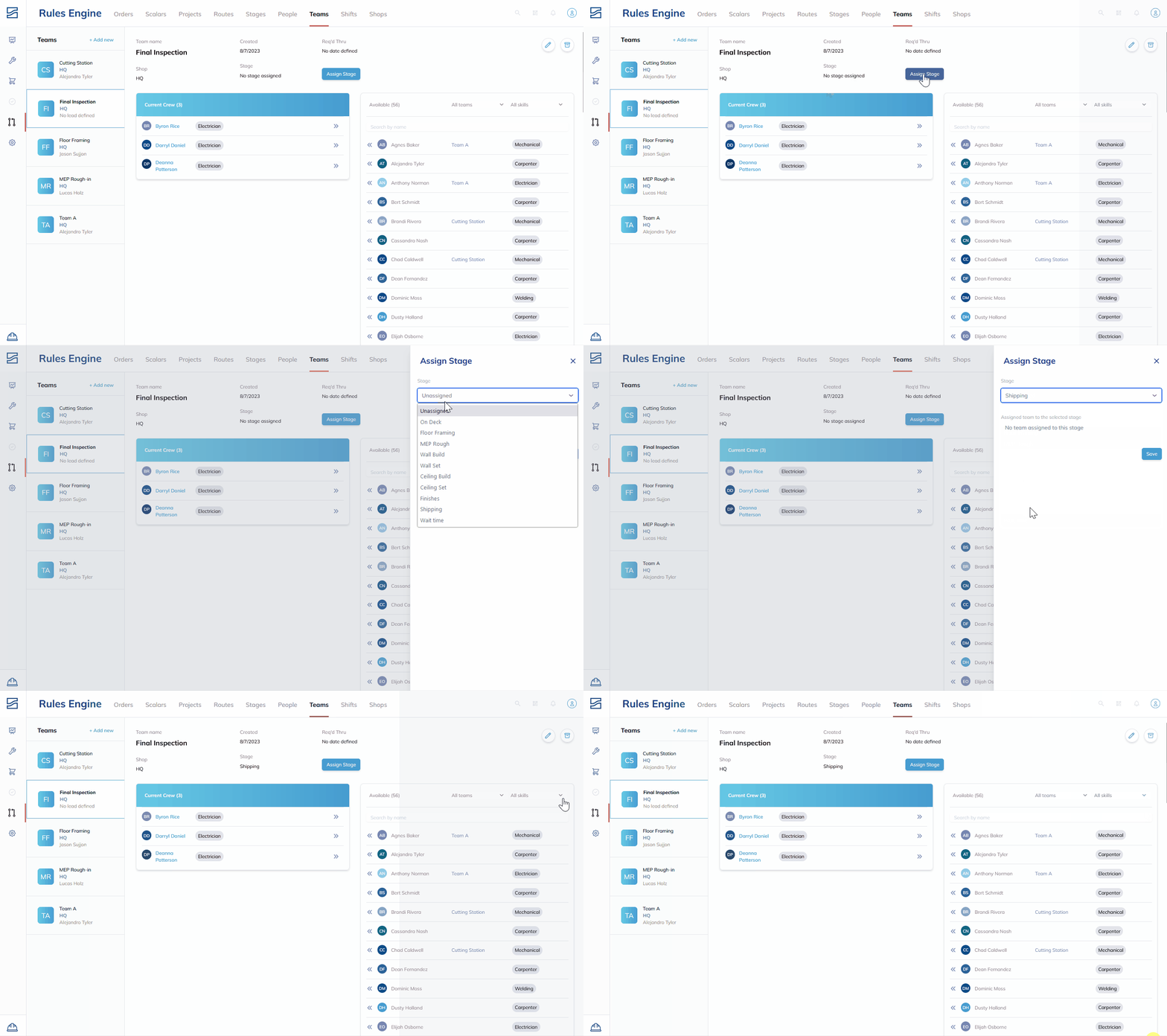
- Click on "Assign Stage".
- Choose the appropriate stage (e.g., "Ceiling Set").
- Save the changes.
Assigning Members to Teams (via People)
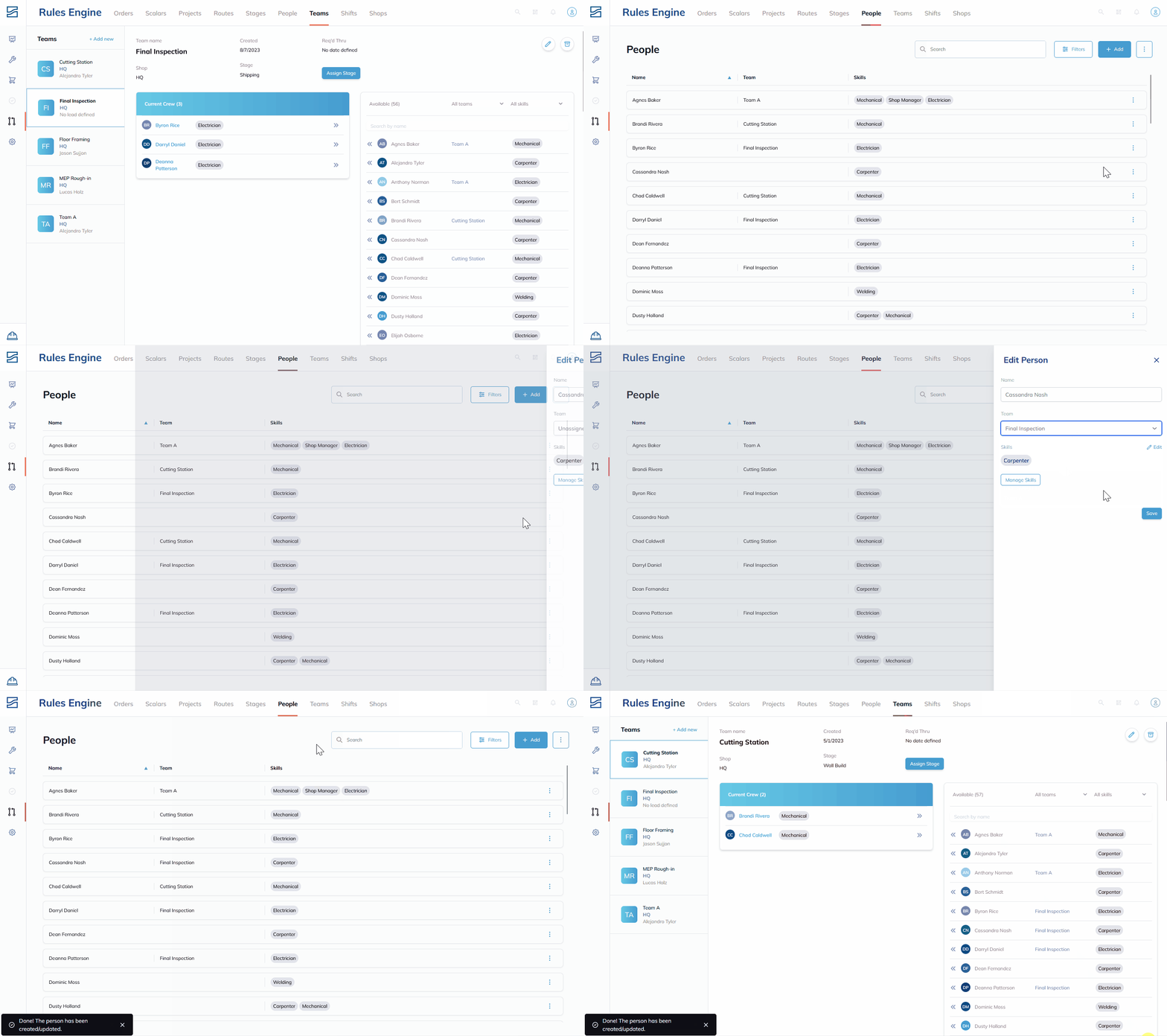
- Go to the "People's tab".
- Click "Edit" next to a member's name.
- Under "Team", select the desired team (e.g., "Welding").
Editing and Archiving Teams
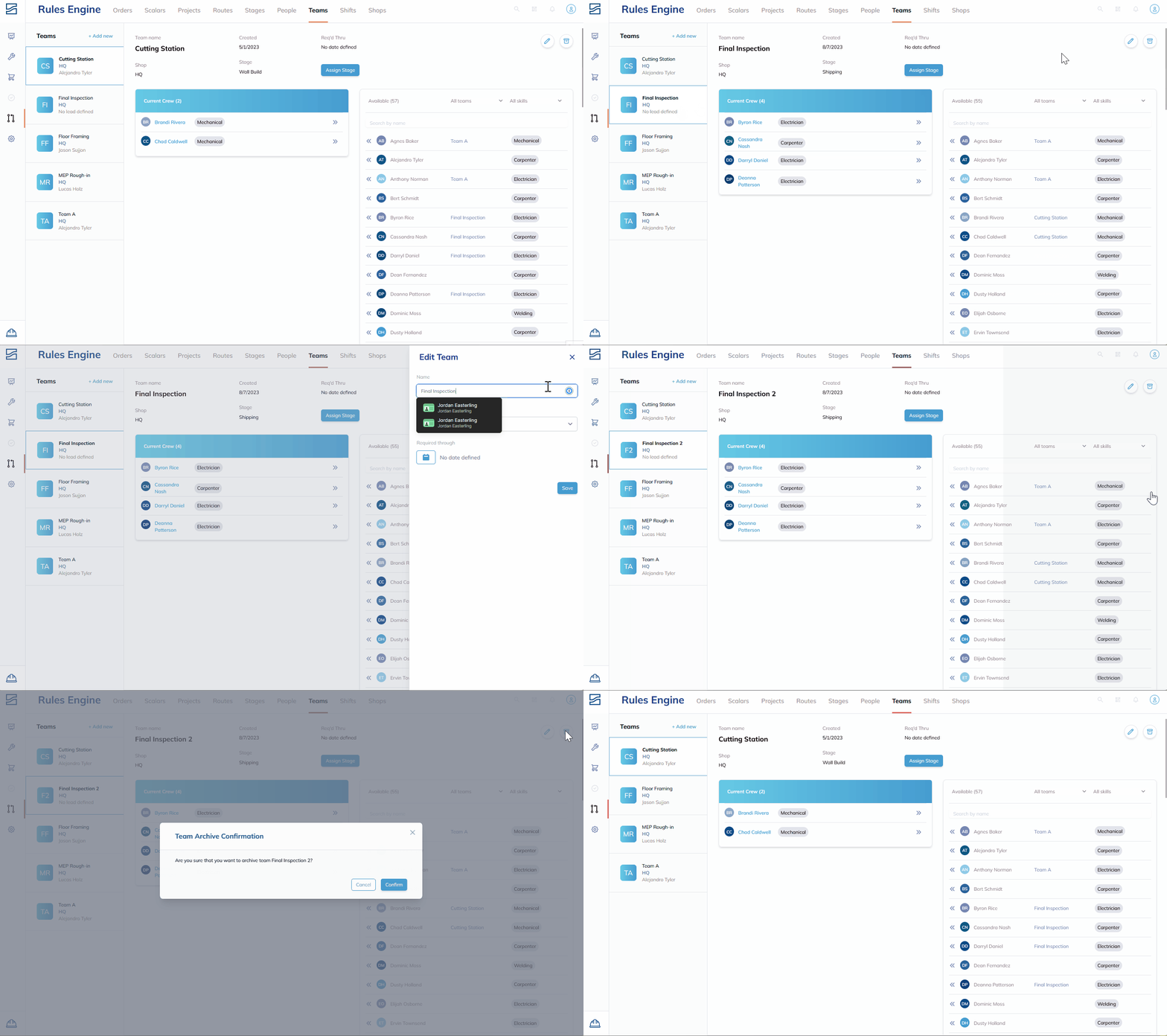
- To edit the team, click on the "Edit" option.
- You can modify the team's Leads, its name, and set an expiration date.
- To archive a team, click the "Archive" button in the top right and confirm. Archived teams will no longer be visible.
Tips
- Please look over your teams regularly to make sure they are updated with the right members and skills.
- Use the skills filter when adding members, so a specialized team gets people who can do the work.
- Instead of deleting, consider archiving teams for historical reference.
Conclusion
Create teams, change them, and keep them current as the work changes.
Related Articles:
Was this helpful?
Still need help? Ask the team